 11
11
wifi disconnects when idle is a common problem in Windows 11. Many users face this issue. Usually, it happens when the laptop is not in use. As a result, the internet stops suddenly. This can interrupt downloads, browsing, or online meetings.
However, this issue is easy to fix. In most cases, power settings or outdated drivers cause it. Therefore, you can solve it quickly by making a few simple changes.
If some websites are not loading: website not opening issue.

First, try these quick steps. In many cases, they solve the problem instantly.
If the issue still continues, follow the fixes below.
First, understand the reason. This helps you fix the issue faster.
As a result, wifi disconnects when idle.
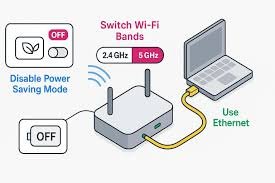
Now, follow these 8 proven fixes step by step.
First, disable power saving. This is the main reason.
As a result, WiFi will stay ON.
If your system performance is slow: mouse freezing fix.
Next, set WiFi to maximum performance. This improves stability.
Therefore, your WiFi remains stable.
Then, update your driver. Old drivers often cause issues.
If the issue continues, reset your network.
As a result, all network errors will be cleared.
Also, change sleep settings. Sleep mode can stop WiFi.
So, WiFi stays active.
In addition, run the troubleshooter.
After that, check your connection.
Moreover, some apps can cause issues.
As a result, your connection improves.
Finally, reinstall the adapter if needed.
Then Windows will reinstall it automatically.
If Bluetooth devices are not working: Bluetooth no sound Windows fix.

If basic fixes do not work, try these advanced methods.
For better stability, change DNS settings.
These are Google DNS servers. Therefore, performance improves.
Sometimes, deeper issues need a reset.
netsh int ip reset
netsh winsock reset
As a result, network issues are fixed.
Also, keep Windows updated.
This helps fix hidden bugs.
Avoid these mistakes. Otherwise, the issue may continue.
In addition, follow these tips:
Therefore, your WiFi remains stable.
Need to record your screen: screen recording Windows 11.
Mainly, power saving turns off WiFi. As a result, the connection stops.
First, disable power saving.
Next, update drivers.
Finally, adjust settings.
Sometimes, updates cause bugs. However, updates also fix them.
Yes, weak signals can cause disconnections. Therefore, stay near your router.
In conclusion, wifi disconnects when idle is easy to fix. First, disable power saving. Next, update drivers. Then, change system settings.
Finally, follow prevention tips. As a result, your WiFi will stay connected without interruptions.


4 thoughts on “wifi disconnects when idle? 8 Proven Ways to Fix It Fast and Never Lose Connection Again”