 11
11
The 4G showing but no internet Android issue is one of the most common problems Android users face today. Even though your phone shows a strong 4G signal, the internet does not work. As a result, apps fail to load, and websites do not open properly.
At first, this situation may seem serious. In reality, the cause is usually simple. Because of minor network glitches or incorrect settings, your phone cannot access mobile data. Therefore, applying the right fixes will solve the issue quickly.
If your WiFi is also causing issues, check this guide: Fix WiFi Connected but No Internet Problem
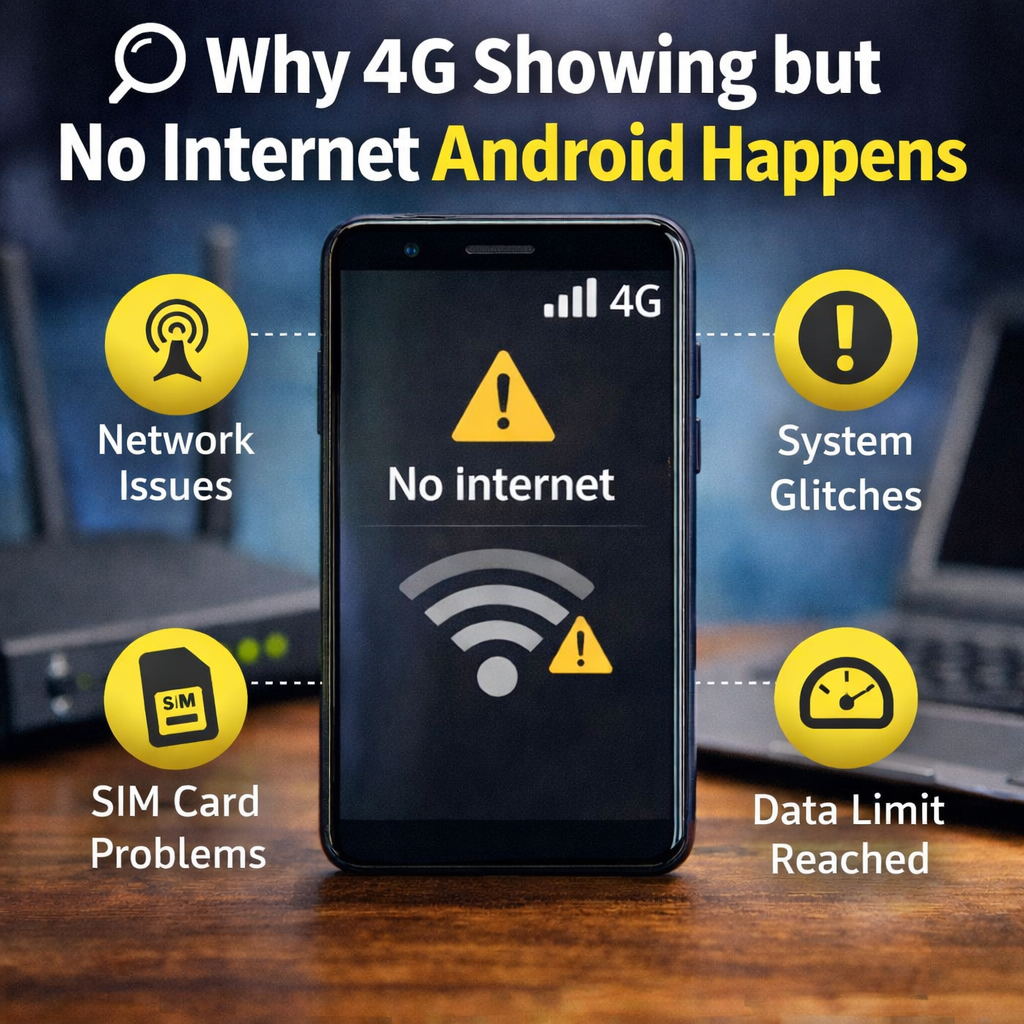
Understanding the cause helps you fix the problem faster. Although your phone displays 4G, it does not always mean the internet is active. In many cases, the device connects to the network but cannot transfer data.
For example, several factors may cause this issue:
Moreover, incorrect APN settings can block internet completely. In addition, switching locations may interrupt the connection. As a result, your phone shows signal but fails to load data.
To start with, try the simplest method.
As a result, your phone reconnects to the network.
Why this works:
Sometimes, the device gets stuck between towers. A quick reset helps it reconnect properly. Consequently, internet access is restored.
Additionally, if apps are not updating properly, this may be related: Why Android Notifications Not Showing – Fix Guide
Another effective solution is restarting your device.
A reboot clears temporary bugs and refreshes system processes. Because of this, hidden issues often disappear.
Once the phone turns on, check your connection again.
Sometimes, the issue is not technical.
Instead, your data plan may be exhausted.
If needed, increase or remove the limit.
Due to this restriction, your phone may still show 4G but block internet access.
Now, focus on one of the most important solutions.
In many cases, the 4G showing but no internet Android problem happens due to incorrect APN settings.
After completing this step, restart your phone.
Why this matters:
APN acts as a bridge between your phone and the internet. Without correct settings, mobile data cannot function properly.
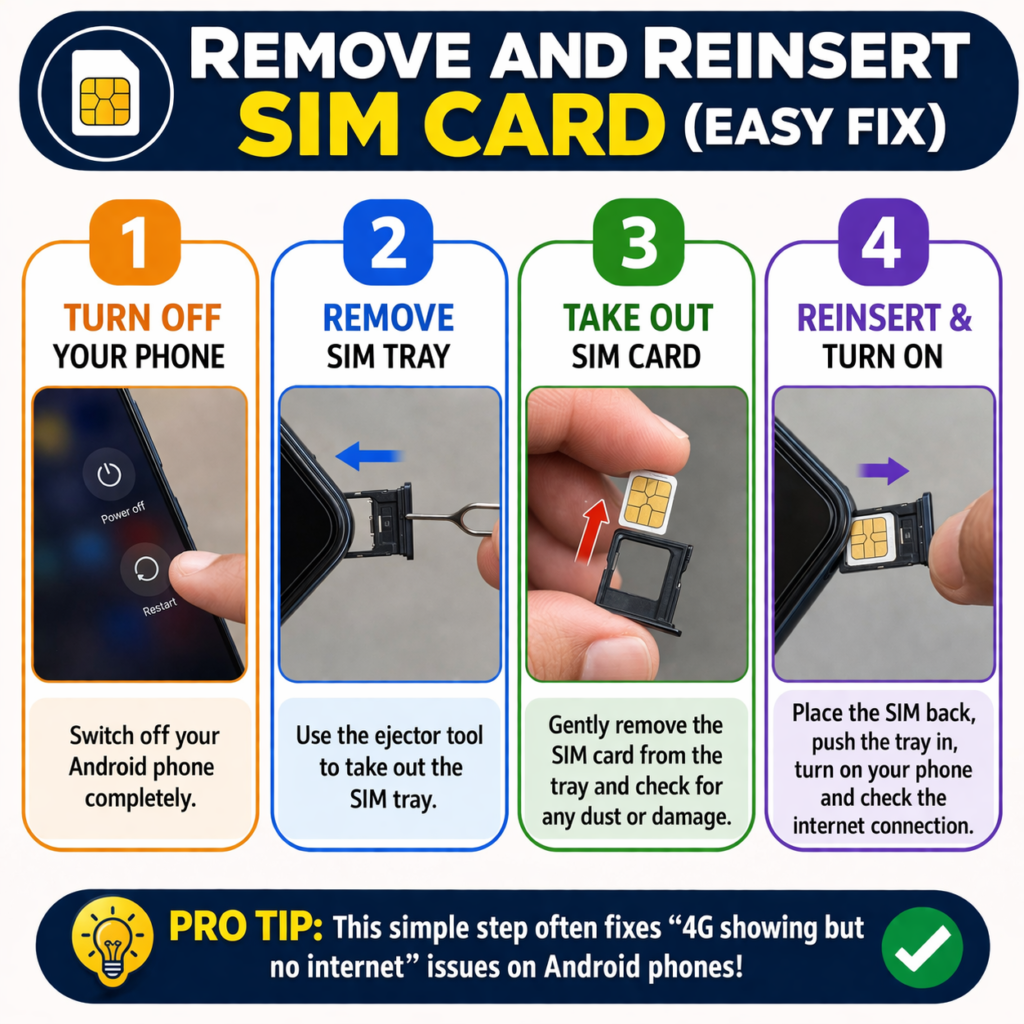
Checking the SIM card is also important.
A loose or dirty SIM may interrupt connectivity.
Finally, turn ON the device.
Testing the SIM in another phone can help confirm the issue.
Additionally, if apps are not updating properly, this may be related: Why Android Notifications Not Showing – Fix Guide
Sometimes, automatic network switching creates instability.
Selecting 4G manually improves connection stability.
As a result, your connection becomes more stable.
If basic fixes fail, resetting network settings is a strong option.
This method clears all saved network configurations.
Afterward, reconnect your networks again.
VPN apps can sometimes block internet access.
Turning it off helps identify the issue quickly.
Disable the VPN and test your connection again.
Free VPN apps often create such problems.
Outdated software may cause network bugs.
Installing updates helps fix these hidden issues.
Updated devices usually perform better.
Moreover, storage issues can sometimes affect performance and connectivity: Phone Storage Full but No Files Showing – Fix
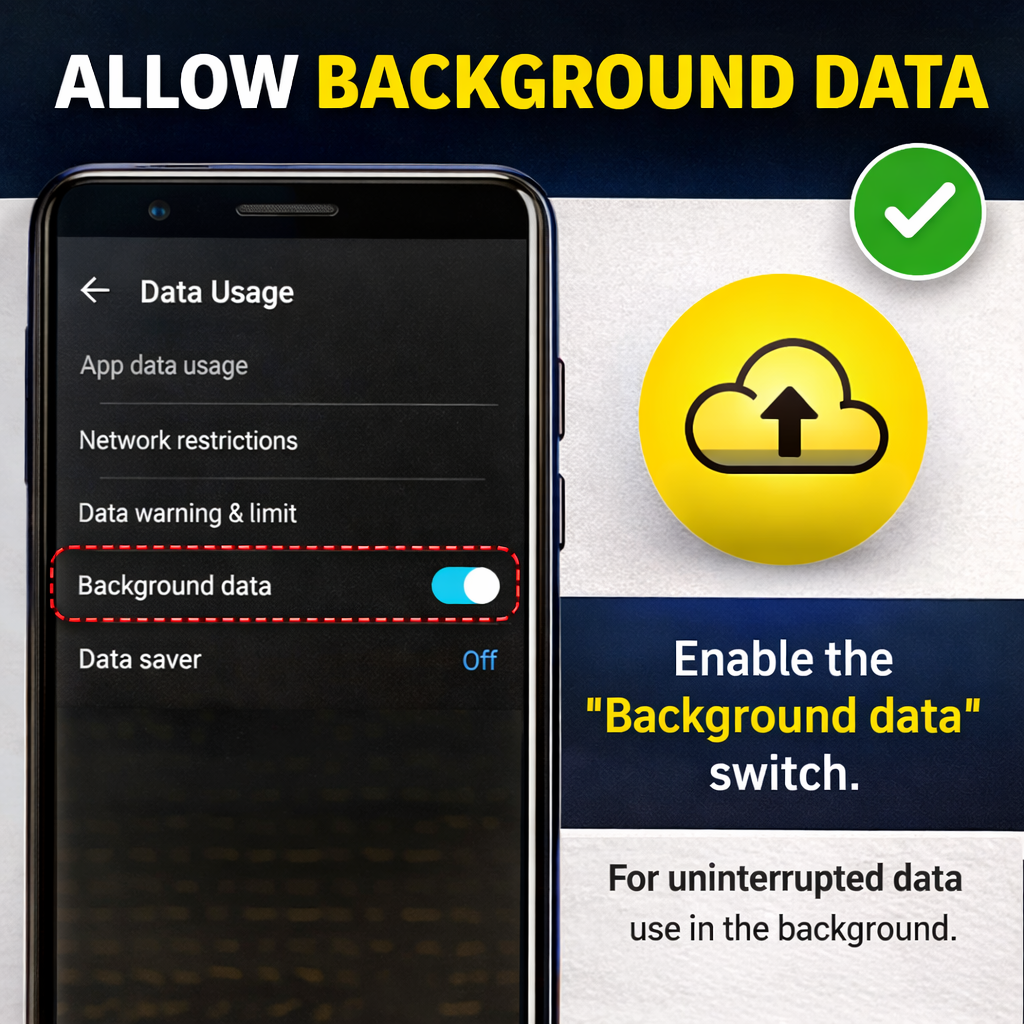
Background data restrictions may stop apps from working.
Enabling this option ensures proper connectivity.
Without this setting, apps may fail to access the internet.
If the problem still exists, contacting your provider is necessary.
Ask about network outages, data plan status, and SIM issues.
Sometimes, the issue comes from the carrier side.
Preventing the issue is always better.
Follow these tips:
As a result, your device will perform more smoothly.
Your phone connects to the network but cannot access data due to APN or SIM issues.
No. It only removes saved WiFi and network settings.
Yes. A damaged SIM can block internet access.
Most cases are software-related, not hardware problems.
APN reset along with airplane mode works in most cases.
The 4G showing but no internet Android issue may feel frustrating. However, most problems are easy to fix.
Start with simple steps like airplane mode and restarting your device. After that, move to advanced fixes like APN reset. Most importantly, check your SIM and data plan.
👉 In most cases, these methods solve the issue quickly.
If your WiFi disconnects frequently, it may also impact your experience: WiFi Disconnects When Idle – Fix
4 thoughts on “4G Showing but No Internet Android Fix (2026 Complete Guide)”