 11
11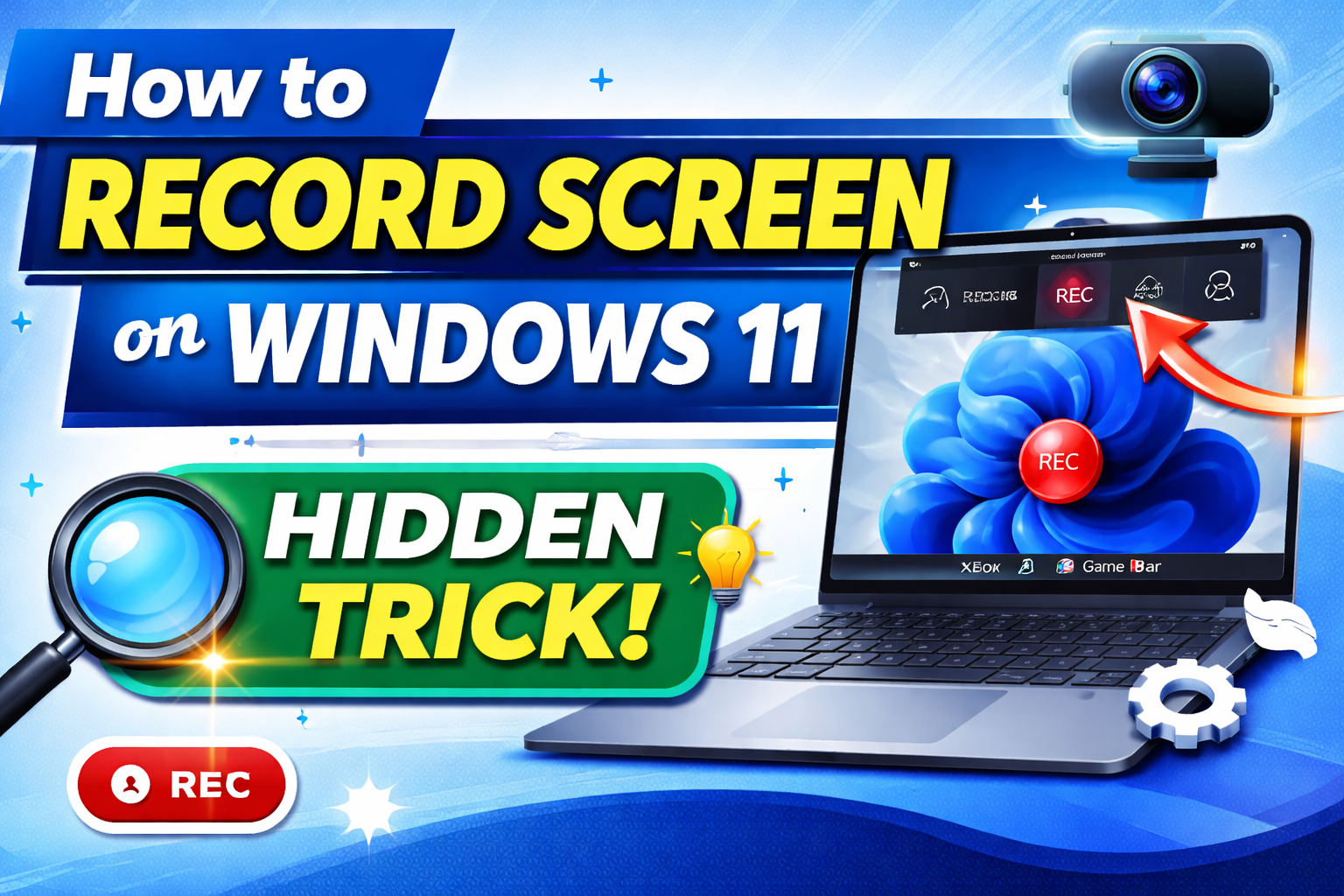
Record screen Windows 11 is simple and does not need extra software. In fact, you can explain ideas clearly and create tutorials, record classes, or capture gameplay easily. Moreover, Windows 11 includes built-in tools that are free and easy to use. Because of this, you can start recording immediately without installing anything. In addition, this guide explains each method in a simple way. If you want better performance, read our guide on How to Improve Laptop Battery Life in Windows. Throughout this guide, you will learn easy ways to capture your screen.
If your mouse freezes during recording: mouse freezing fix.
Screen recording helps in many situations. For example, you can create tutorials quickly. In addition, you can also record meetings easily. Moreover, this feature is useful for both beginners and professionals. As a result, communication becomes faster and clearer.
Many people use this feature daily. For instance, students save lessons for later review, while professionals record presentations for sharing. Meanwhile, content creators produce videos for their audience. Therefore, this feature improves productivity.
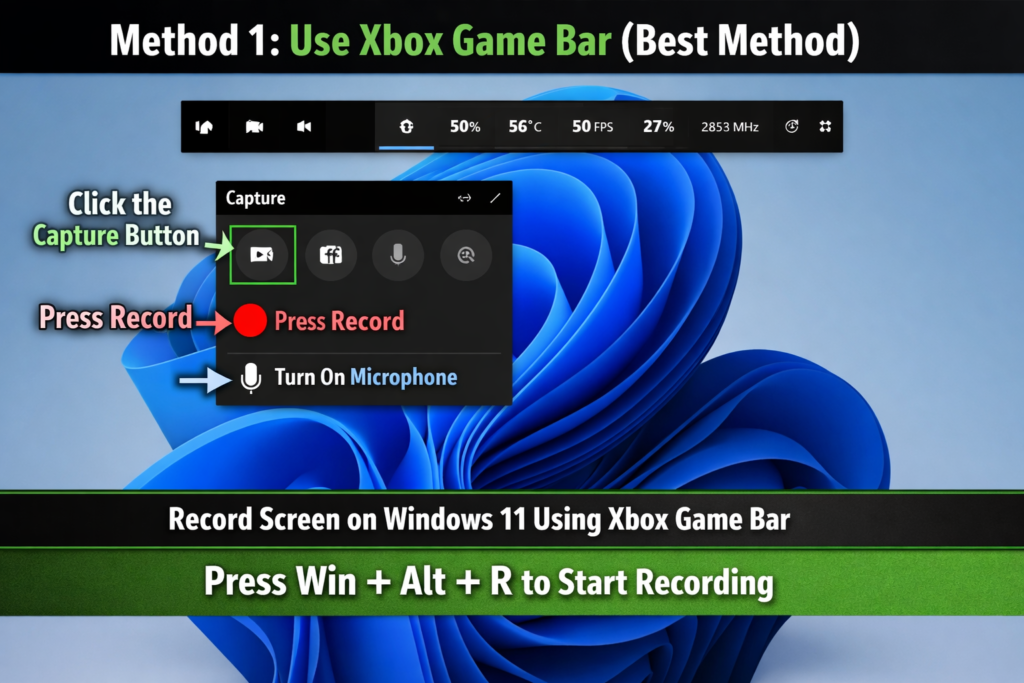
Xbox Game Bar is the easiest way to record your screen. Not only that, it comes pre-installed in Windows 11, so you do not need to install anything. Originally, developers built it for gamers. However, it now works for everyone.
Keyboard shortcuts make it fast to use. Because of this, you can start recording quickly. Furthermore, this tool works instantly without extra setup.
📁 Files save in:
Videos → Captures
As a result, recordings stay smooth and clear.
If audio is not working: Bluetooth no sound issue.
Therefore, use it mainly for apps and browsers.
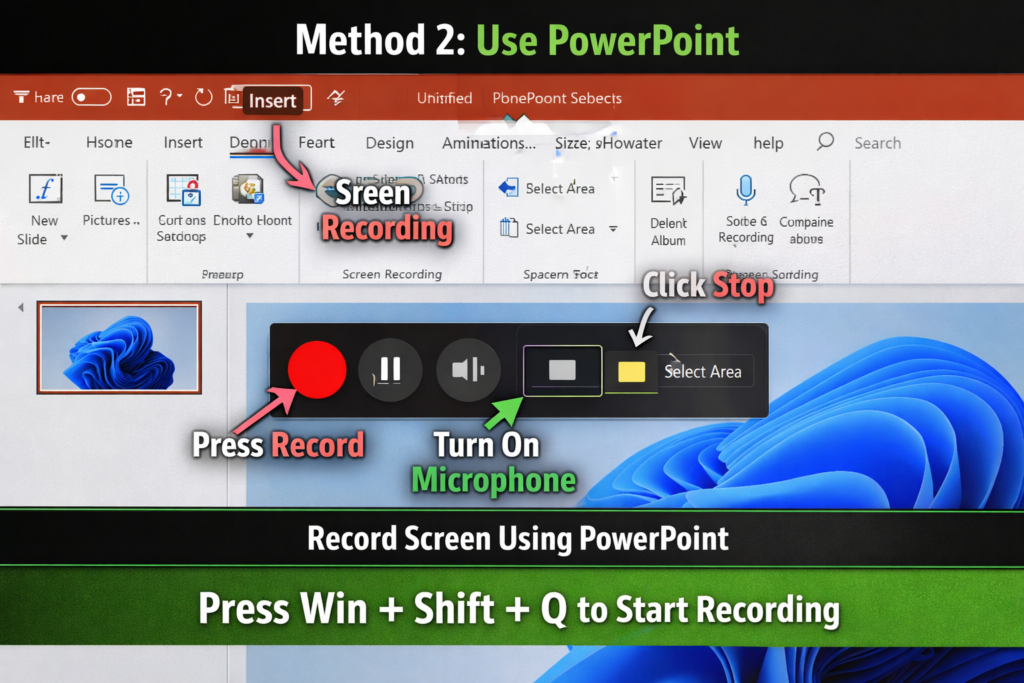
PowerPoint also lets you record your screen. Many users do not know this feature. However, it is very useful for presentations and tutorials.
You can select a specific area instead of recording the full screen. Because of this, you get better control. Moreover, this tool is easy to use.
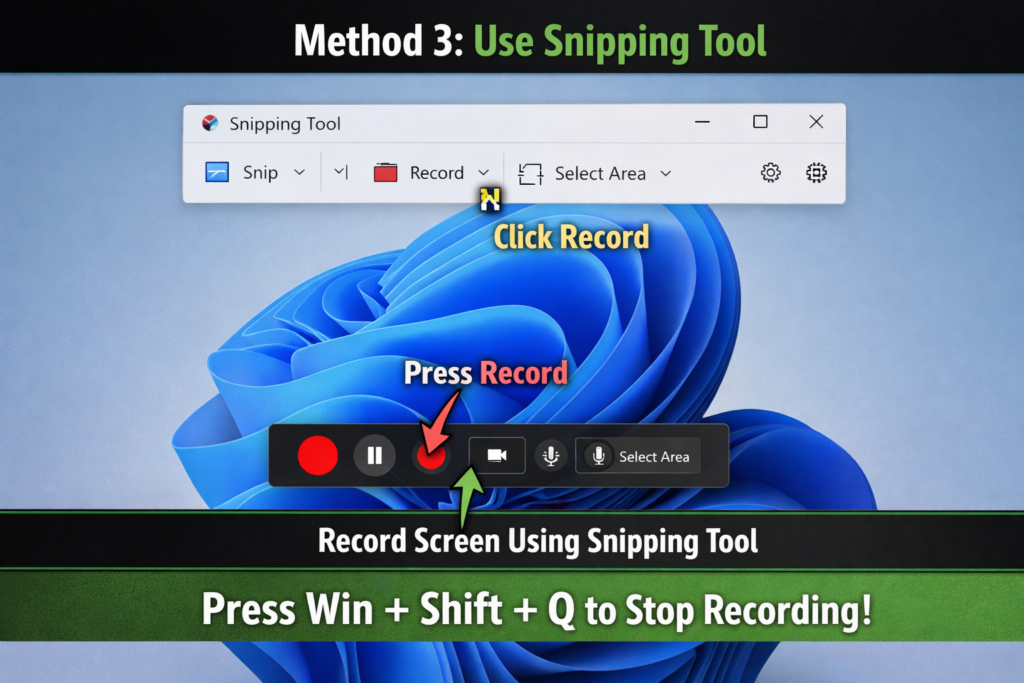
Windows 11 includes recording in the Snipping Tool. It is simple and fast. For instance, you can capture short clips quickly.
The tool runs smoothly on most systems. Because of this, beginners can use it without problems.
⚠️ Update Windows if needed.
If your internet disconnects: WiFi disconnect fix.
Good settings improve quality. First, use 1080p resolution for clear visuals. Next, choose a good microphone for better sound. In addition, close unnecessary apps to improve performance. Also, using proper settings helps improve video quality. Finally, make sure you have enough storage.
Furthermore, keep your system updated. As a result, recordings become stable and smooth.
Choosing the right tool depends on your needs. On one hand, Xbox Game Bar supports audio recording and works well for apps. On the other hand, Snipping Tool is simple and lightweight.
Overall, Xbox Game Bar works better for most users.
First, go to Settings → Gaming → Enable Xbox Game Bar
Next, check microphone permissions
Then, close apps and reduce resolution
Additionally, update drivers if needed.
Moreover, improving system performance helps reduce lag.
Use keyboard shortcuts to save time. Also, avoid multitasking while recording. Furthermore, keep a stable frame rate. Finally, use an external microphone for better sound.
Because of these steps, your videos will look more professional.
If websites are not loading: website not opening fix.
Yes, Windows 11 includes built-in tools.
Yes, all methods are free.
Yes, you can record both system and microphone audio.
Xbox Game Bar is the easiest option.
Record screen Windows 11 is easy and free. Overall, built-in tools give everything you need. Therefore, you can record tutorials, meetings, or gameplay without extra software.
Finally, using built-in tools saves both time and effort. So, start today and improve your workflow.

One thought on “How to Record Screen on Windows 11 (Hidden Trick)”