
 11
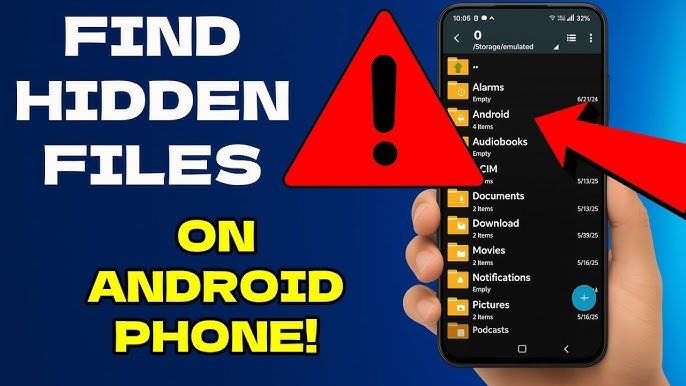
11 If you are facing the issue of hidden files not showing on Android, you are not alone. Many users face this problem. Files suddenly disappear from the file manager. However, the files are not deleted.
Instead, they are hidden. This usually happens due to settings or small system issues. Therefore, you can fix it easily.
In this guide, you will learn simple ways to fix hidden files not showing on Android. Moreover, you will also learn how to avoid this issue later.
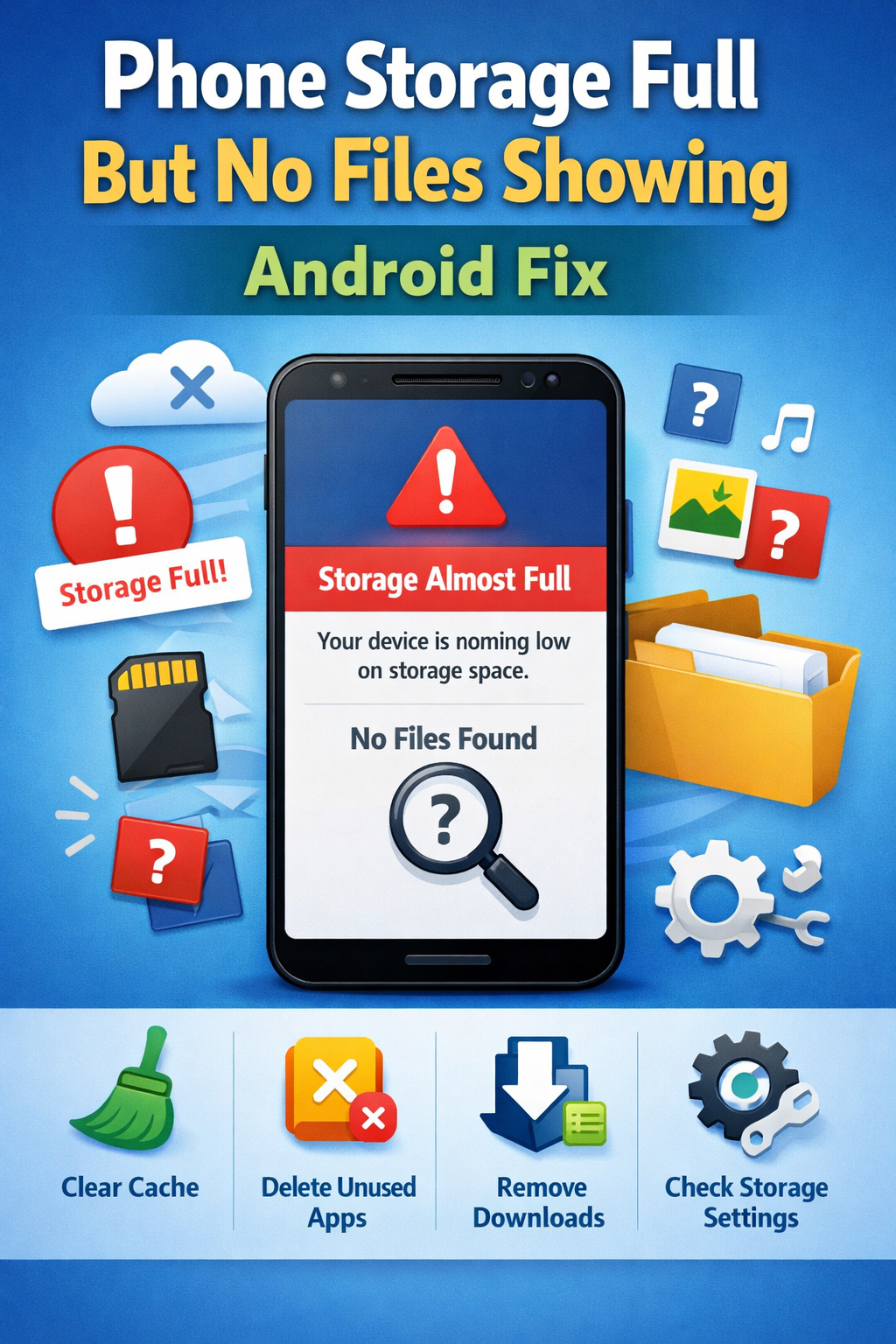
If your storage appears full without visible files: phone storage full but no files showing Android fix.
Before fixing the issue, you should know the cause. This helps you choose the right method. Therefore, understanding the reason is important.
Android hides some files by default. However, this can create confusion.
As a result, files exist but are not visible. Therefore, finding the cause is the first step.
First, try a simple fix.
Restart your phone. Then open your file manager. After that, enable hidden files.
In many cases, this works. However, if it does not work, you should follow the methods below.

First, check if hidden files are enabled. In fact, this is the most common reason.
Once you enable this option, files will appear. Therefore, always try this method first.
Sometimes, the file manager cannot load files. This happens due to cache issues. Therefore, clearing cache can fix the issue.
After that, open the app again. Then check your files. In most cases, this works well.
If some websites are not loading properly: website not opening fix guide.
The .nomedia file hides media files. However, it can hide important files too. Therefore, removing it is necessary.
After deleting the file, your files should appear. As a result, this method is very effective.
Media storage scans your files. However, if it fails, files do not show. Therefore, resetting it can help.
Then restart your phone. Consequently, files will be scanned again.
If permission is off, the file manager cannot show files. Therefore, you must allow access.
After enabling permission, open the app again. Now your files should be visible.
Sometimes, the default app has bugs. In such cases, using another app can help.
For example, you can try:
These apps are better. Therefore, they show hidden files easily. In addition, they provide better control.
If you use an SD card, it may cause the issue. Therefore, checking it is important.
First, remove the card. Then insert it again.
Alternatively, test it on another device. This will confirm if it works properly.
If your system is slowing down: mouse freezing Windows 11 fix.
Many file managers include a trash folder. Therefore, your files may still be there.
Open your file manager. Then check Trash or Recently Deleted.
If files are there, restore them. As a result, you can recover them easily.
In rare cases, malware hides files. Therefore, scanning your device is useful.
Install an antivirus app. Then scan your phone.
After that, remove any threats. Consequently, your files may become visible again.
In addition to the above methods, you can follow these tips:
By following these steps, you can prevent issues. Moreover, your device will perform better.
Prevention is important. Therefore, follow these steps:
As a result, your phone will work smoothly. In addition, you can avoid this problem in the future.
Hidden settings or .nomedia file can cause this. Therefore, enable hidden files.
First, turn on Show Hidden Files. Then check storage again. As a result, files will appear.
No. Files are usually hidden, not deleted.
No. It only removes temporary data. Therefore, your files remain safe.
Want to record your screen easily: how to record screen on Windows 11.
The issue of hidden files not showing on Android is common. However, it is easy to fix.
First, enable hidden files. Then clear cache. After that, remove .nomedia file. Also, check permissions.
Finally, use a better file manager if needed. Moreover, follow good habits to prevent this issue.

2 thoughts on “Why Hidden Files Not Showing on Android? Fix Now”