 11
11 Bluetooth no sound Windows is a common problem. Many users face it every day. Your device connects, but there is no sound. As a result, this feels frustrating.
However, the issue is usually simple. In most cases, small settings cause the problem. Therefore, you can fix it quickly. You only need to follow a few steps.
There are many reasons for this issue.
First, Windows may select the wrong output device. Because of this, sound plays through speakers.
In addition, outdated drivers can cause problems. When drivers are old, audio may stop working.
Moreover, low volume is another reason. Either your system or device may be muted.
Finally, background apps can interrupt sound. As a result, audio may not play.
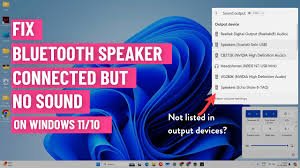
Start with this simple step.
First, right-click the sound icon.
Next, open Sound settings.
After that, select your Bluetooth device.
Then, play audio to test it.
Finally, confirm the sound is working.
In many cases, this fixes the issue quickly.
Next, check your volume settings.
First, increase the system volume.
Then, check the Bluetooth device volume.
Also, make sure nothing is muted.
In addition, open the volume mixer.
After that, check each app sound level.
Finally, test the audio again.
Sometimes, small errors block audio.
To fix this, turn off Bluetooth completely.
Then wait a few seconds.
After that, turn it back on.
Next, reconnect your device.
Finally, test the sound again.
As a result, the connection refreshes.
If the problem continues, reconnect your device.
First, remove it from Bluetooth settings.
Next, restart your computer.
After restarting, pair the device again.
Then, test the audio output.
Finally, confirm everything works.
This clears hidden errors.
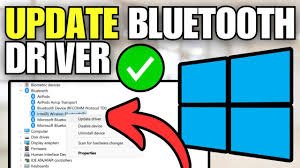
Drivers are very important.
To begin, open Device Manager.
Next, find Bluetooth drivers.
After that, find audio drivers.
Then, update both drivers.
Finally, restart your system.
As a result, many issues are fixed.
Sometimes, Windows does not switch devices.
First, open Sound settings again.
Next, select your Bluetooth device.
After that, set it as default output.
Then, play audio.
Finally, confirm sound works.
This ensures correct output.
Audio enhancements can cause problems.
To fix this, open device properties.
Next, go to the Enhancements tab.
Then, disable all enhancements.
After that, apply changes.
Finally, test your audio again.
This improves stability.
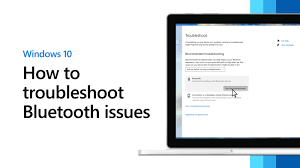
Windows includes a helpful tool.
First, open Settings.
Next, go to Troubleshoot.
Then, run the audio troubleshooter.
After that, follow instructions.
Finally, apply suggested fixes.
This tool can fix many problems.
Bluetooth services may stop working.
To refresh them, press Windows + R.
Next, type services.msc.
After that, find Bluetooth services.
Then, restart them.
Finally, test your audio again.
This improves performance.
If you want fast results, follow this checklist:
Select correct output device
Increase volume
Restart Bluetooth
Reconnect device
Update drivers
In most cases, these steps fix the issue.
To prevent this issue, follow simple habits.
First, keep your system updated.
In addition, use good Bluetooth devices.
Moreover, stay within range.
Also, avoid too many connections.
As a result, your system works better.
Many users skip simple steps.
For example, they forget to select the correct device.
In addition, some ignore updates.
Because of this, the issue continues longer.
If basic steps do not work, try advanced methods.
First, reset Bluetooth settings.
Next, update your Windows system.
Then, remove unused devices.
After that, reinstall drivers if needed.
Finally, test your audio again.
These steps fix deeper issues.
Sometimes, small actions help.
For example, restart your computer fully.
Also, check for updates often.
In addition, charge your device fully.
Finally, try another Bluetooth device.
This helps identify the problem.
You can improve performance easily.
First, keep devices close together.
Next, avoid walls and obstacles.
Moreover, turn off unused devices.
Also, keep your system clean.
As a result, connection quality improves.
Low battery can affect sound.
Make sure your device is charged.
In addition, charge it fully before use.
Low power reduces performance.
Other devices can affect Bluetooth.
For example, WiFi routers may cause interference.
Therefore, keep distance from strong signals.
This helps maintain a stable connection.
Sometimes, the issue is not clear.
First, try another Bluetooth device.
Next, connect it to your system.
If it works, your old device may be faulty.
Why is my Bluetooth connected but no sound?
This happens due to wrong settings or outdated drivers.
What is the fastest fix?
Select the correct output device and restart Bluetooth.
Do drivers affect sound?
Yes, outdated drivers can stop audio.
Bluetooth no sound Windows is easy to fix.
Although the issue looks serious, the solution is simple.
First, follow the basic steps.
Then try advanced fixes if needed.
Finally, test your audio again. As a result, your sound will work.