 11
11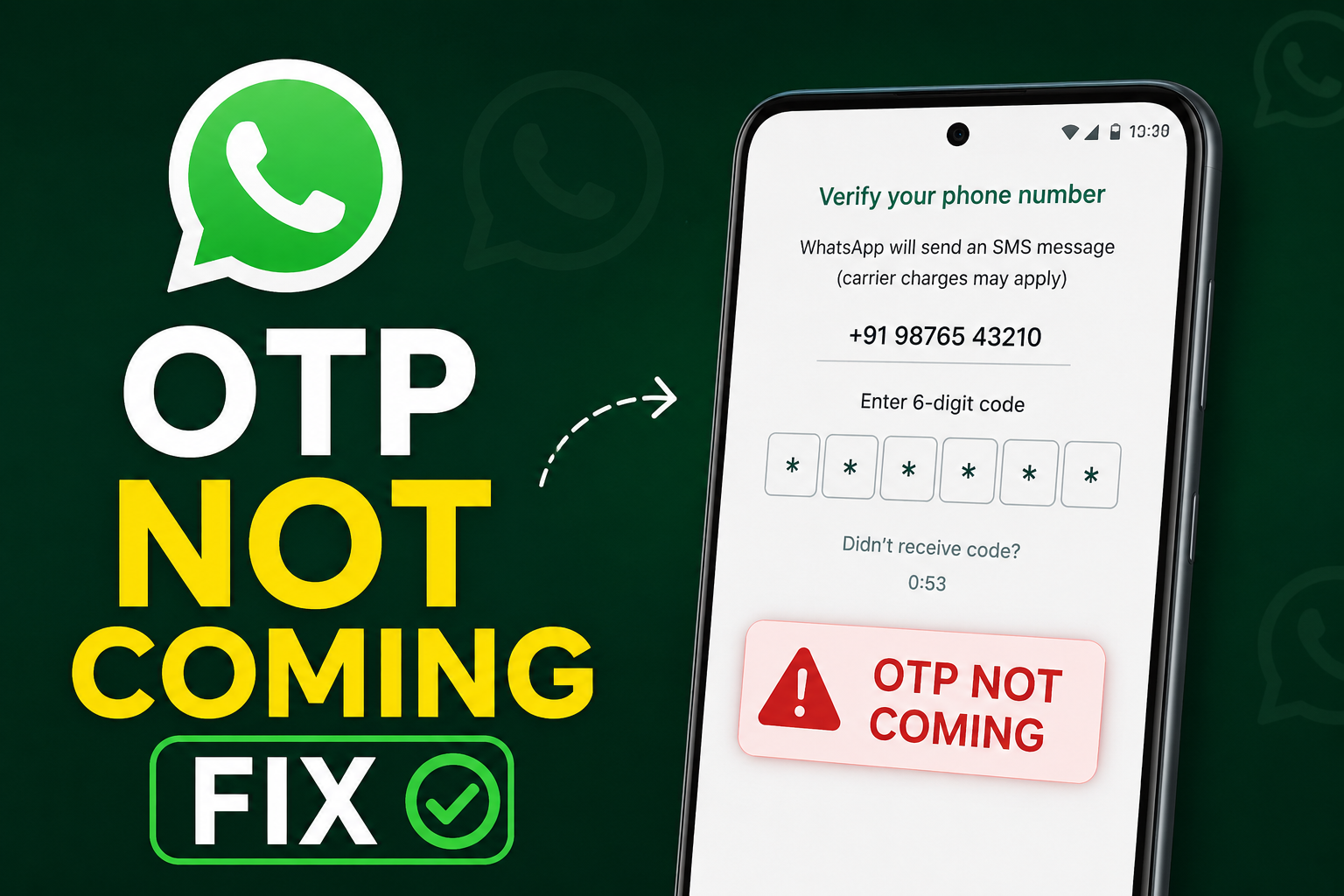
Have you been trying to log in to WhatsApp but the verification code never arrives? If yes, you’re not alone. Many users face the WhatsApp OTP not coming on Android issue. The problem can happen after a WhatsApp update, a SIM card change, or a network issue.
Fortunately, you can fix this problem in most cases. In fact, many users receive their OTP within a few minutes after trying the right solution.
In this guide, you’ll learn why this happens and how to fix it. Moreover, these methods work on Samsung, Xiaomi, Vivo, Oppo, Realme, Motorola, OnePlus, and other Android phones.
Before you try the fixes, it’s helpful to understand the possible causes. After all, finding the reason makes troubleshooting easier.
Here are the most common reasons:
However, don’t panic. Most of these issues are easy to fix.
First of all, check your phone number carefully.
Although it sounds obvious, many users enter the wrong number. Others choose the wrong country code.
Therefore, make sure you:
After that, request the OTP again.
If the number is incorrect, WhatsApp cannot send the verification code to your device.
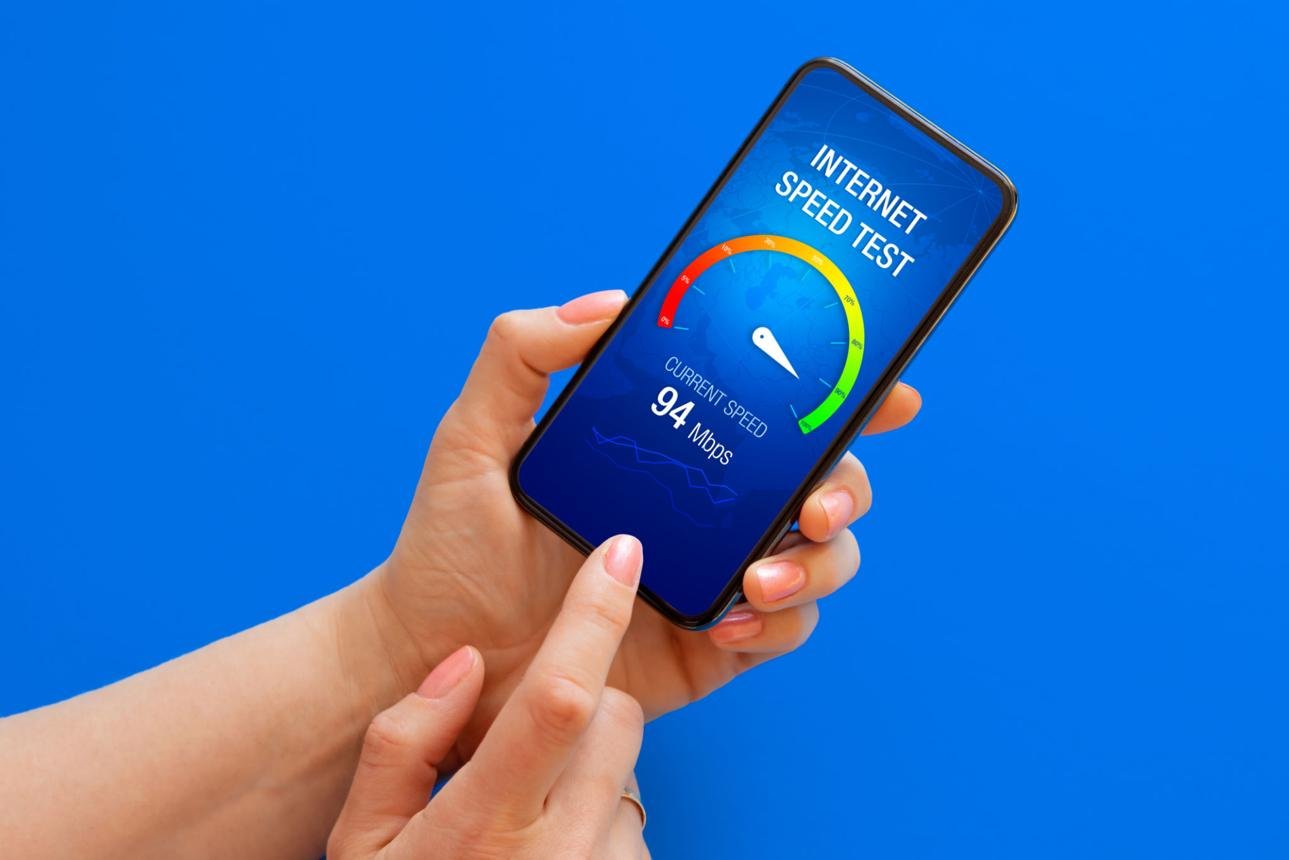
Next, check your mobile network.
Since WhatsApp sends OTPs through SMS, poor signal strength can delay the message.
Therefore, try these tips:
Furthermore, if you’re indoors, step outside and try again.
A stronger signal often fixes the WhatsApp OTP not coming on Android issue immediately.
Sometimes, Android phones develop temporary glitches.
As a result, incoming messages may not appear correctly.
Thankfully, restarting your phone is easy.
Although this method is simple, it works for many users.
Therefore, don’t skip it.

Another easy fix is refreshing your network.
To do this:
As a result, your device reconnects to your mobile carrier.
Consequently, delayed SMS messages often arrive.
Using an outdated version of WhatsApp can cause problems.
Therefore, make sure you’re using the latest version.
After updating, try requesting the verification code again.
Moreover, updates often include bug fixes.
If the WhatsApp OTP not coming on Android after update issue started recently, this fix may solve it.
Temporary files sometimes become corrupted.
Because of this, WhatsApp may not work correctly.
Fortunately, clearing the cache takes less than a minute.
Afterward, reopen WhatsApp.
Then, request another OTP.
Importantly, clearing cache does not delete your chats.
Instead, it refreshes the application.
Many users press the “Resend SMS” button repeatedly.
However, this can delay the process.
In some cases, WhatsApp temporarily limits repeated requests.
Therefore:
Although waiting feels frustrating, it often solves the problem.
Patience can save time.
If SMS verification fails, WhatsApp provides another option.
Specifically, you can receive the code through a voice call.
For many users, this method works instantly.
Therefore, try it before moving to advanced fixes.
Some apps automatically block incoming messages.
Unfortunately, they may also block OTPs.
Common examples include:
Therefore, disable these apps temporarily.
After that, request another OTP.
Likewise, check your spam folders.
Sometimes, the verification message gets filtered automatically.

If nothing has worked so far, don’t lose hope.
Instead, try these additional fixes:
Ask yourself:
If necessary, test the SIM in another phone.
Sometimes, the SIM card isn’t connected properly.
Therefore:
Finally, contact your network provider.
Ask whether:
In many cases, carriers can identify hidden problems.
3 thoughts on “WhatsApp OTP Not Coming on Android? 10 Easy Fixes That Work in 2026”