 11
11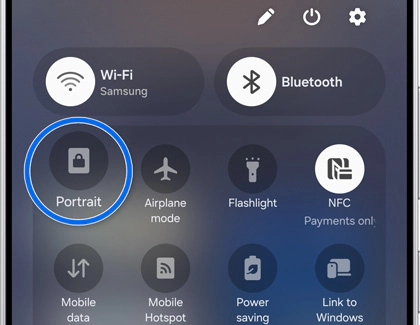
The auto rotate not working android issue stops your screen from rotating when you tilt your phone. Many users face this problem, especially after updates or app changes. If your screen stays stuck in portrait mode, you need a quick fix.
I faced the auto rotate not working android issue while watching a video. I tilted my phone, but the screen did not rotate. At first, I thought it was a small glitch. I toggled auto rotate on and off, but nothing changed. Then I tested different fixes one by one. Finally, I found what actually works.
In this guide, I’ll show you the exact steps that solved the problem for me.
If you’re facing similar issues, you can also fix Play Store pending on Android.The auto rotate not working android problem usually comes from simple causes. In most cases, your phone cannot detect movement correctly.
Here are the common reasons:
For example, my phone had a sensor issue. Because of that, the screen could not detect rotation. After fixing the sensor, everything worked normally.
First, check the auto rotate setting.
Sometimes, users turn it off without noticing. As a result, the screen stays locked.
Steps:
I checked this first. The setting was already ON, so I moved to the next fix.
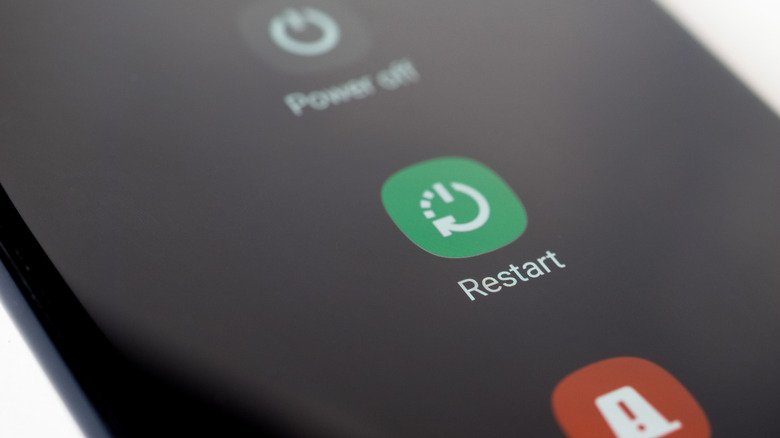
Next, restart your phone.
Restarting clears temporary glitches and refreshes system processes.
I tried restarting immediately. However, it did not fix the issue. The screen still refused to rotate. So, restarting helps sometimes, but not always.
In addition, check copied text not pasting in Android appsThis is the most powerful fix.
Your phone uses sensors to detect movement. If they stop working correctly, rotation fails.
Here’s what I did:
I installed a sensor calibration app. Then I placed my phone on a flat surface and completed the calibration. After that, I tested rotation again. The screen rotated instantly.
👉 This fix solved the issue completely.
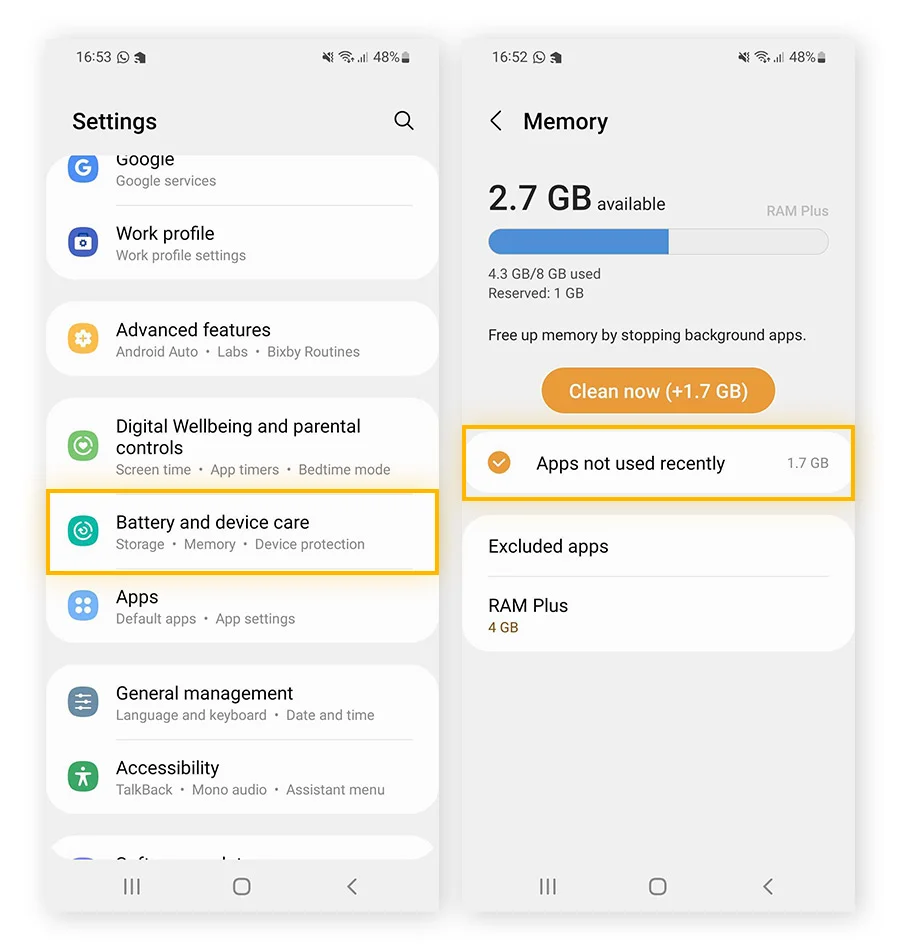
Next, clear your system cache.
Cache stores temporary files. Sometimes, these files create conflicts.
I ignored this step at first. Later, I cleared cache and tested rotation again. The performance improved.
So, clearing cache supports other fixes.
Battery saver can block background processes and sensors.
On one of my devices, battery saver was ON. Because of that, rotation did not work properly.
I turned it OFF. Immediately, the screen started rotating again.
Always check:
Sometimes, apps cause the issue.
Some apps:
I tested rotation in different apps. It worked in some apps but failed in others. That confirmed the issue came from specific apps.
So, always test multiple apps.
In addition, check copied text not pasting in Android appsFinally, update your phone.
Software updates fix bugs and improve performance.
I updated my phone once. After that, small issues disappeared, including rotation problems.
If you face other problems, you can also check:
These issues often connect to system performance.
Moreover, you can solve battery draining overnight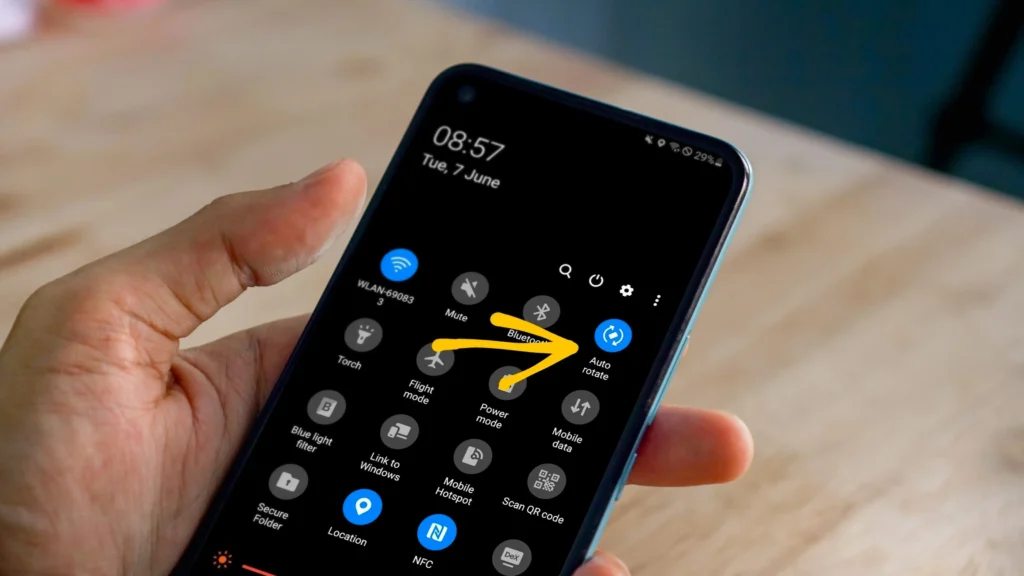
At first, I believed restarting would fix the issue. However, it did not work. Then I checked settings, but everything looked fine.
After that, I cleared cache, but the issue remained. Finally, I calibrated the sensors. Immediately after that, the screen started rotating normally.
👉 So based on my experience:
The auto rotate not working android issue may look serious, but simple fixes can solve it quickly.
Follow these steps in order:
In most cases, one of these fixes will solve the problem.
Sensor issues, settings problems, or system bugs usually cause it.
Restarting helps sometimes but does not always fix the issue.
Yes, some apps lock screen orientation.
Sensor calibration works best.
Yes, it can limit sensor activity.
phone heating while charging.
One thought on “Auto Rotate Not Working on Android? Try These Quick Fixes Now”