 11
11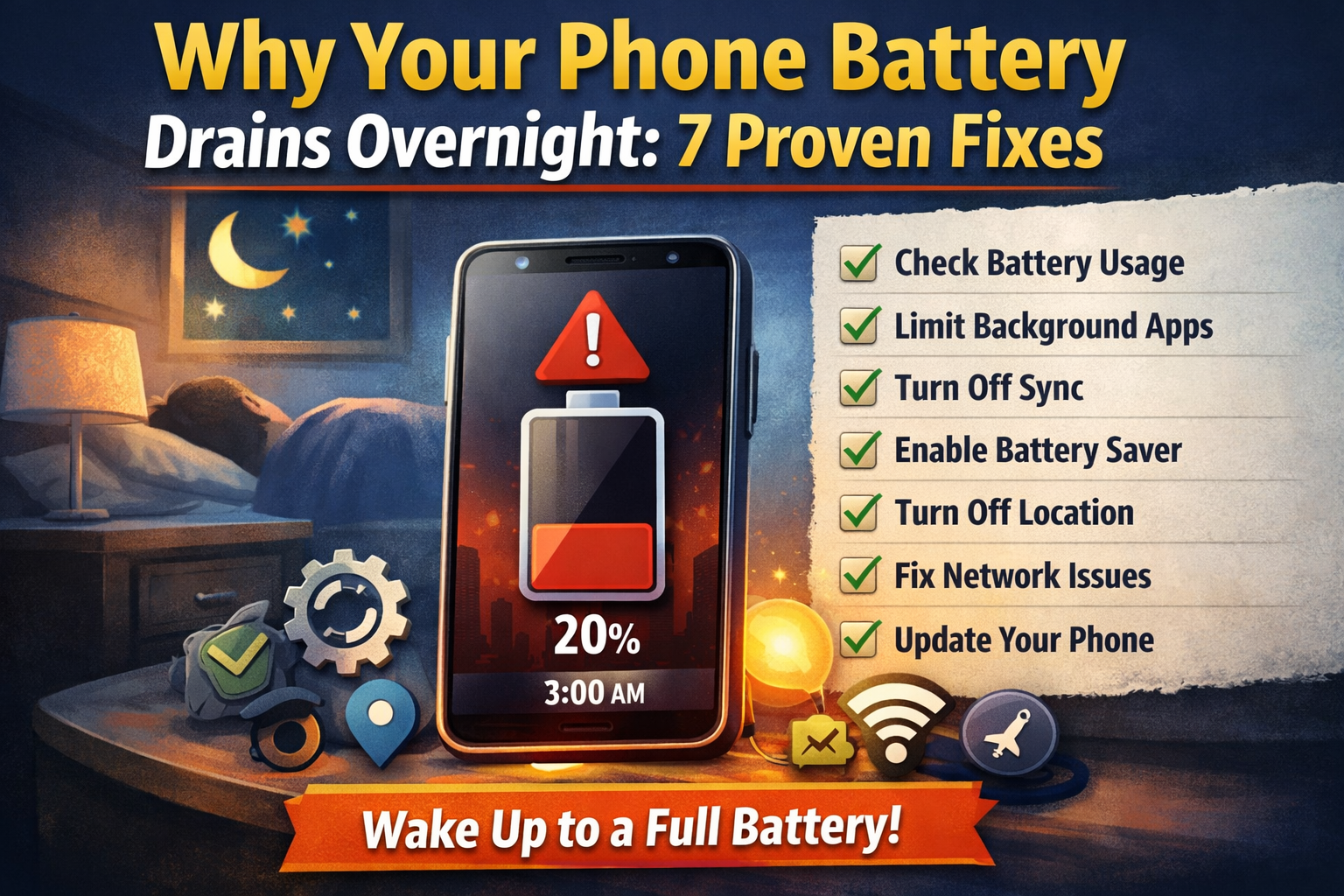
If your battery draining overnight android issue is happening even when you are not using your phone, you are not alone. In fact, many Android users face this problem daily. You go to sleep with 70–80% battery, but by morning, it drops below 40%. As a result, it becomes frustrating and confusing.
However, this is usually not a battery damage issue. Instead, it happens because of hidden background activity, syncing apps, or system behavior. Therefore, if you fix the root cause, your battery will stay stable overnight.
In this guide, I will share real experience, tested fixes, and what actually worked.
If your phone also has storage issues, you should check this guide: Phone Storage Full But No Files Showing? Fix Now.
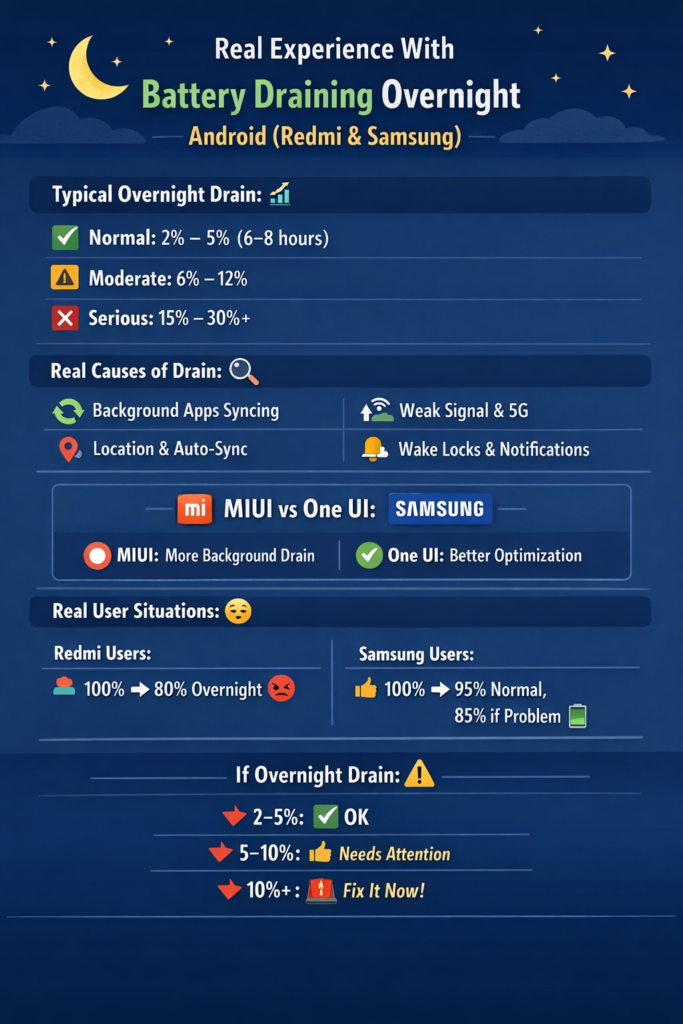
Initially, I faced the battery draining overnight android issue on a Redmi Note device. Before sleeping, the battery was 76%. However, when I woke up, it dropped to 39%.
At first, I thought the battery was weak. So, I tried restarting the phone. However, that did not solve the issue. Then, I tested the same on a Samsung device. Surprisingly, the same problem happened.
After that, I checked battery usage carefully. I noticed that Google Play Services and one social app were active all night. Therefore, I restricted those apps and turned off sync.
As a result, the next day battery drop was only 3%. So, this proved that the issue was caused by background activity, not hardware.
To begin with, your phone never fully sleeps. Instead, many processes continue running silently. Because of this, battery drains slowly overnight.
For example:
Moreover, after updates, some apps behave abnormally. Therefore, battery usage increases without your knowledge.
First of all, you must find the real cause. Without this step, you are guessing.
If any app shows high usage, restrict it immediately. As a result, you stop the main source of drain.
👉 What worked for me:
Google Play Services was using battery overnight. After restricting background activity, the issue reduced instantly.
Sometimes hidden files can affect system performance. Learn how to fix it here: Fix Hidden Files Not Showing on Android (Quick Guide).
Next, you should control background apps. Even though apps look closed, they still run.
For instance, Facebook, Instagram, and shopping apps often run silently. Therefore, restricting them helps a lot.
👉 What didn’t work:
Just closing apps manually did nothing. However, restricting them fixed the issue.
In addition, auto-sync is a major cause. Because of this, apps keep refreshing data.
Alternatively, you can disable sync only at night. As a result, your phone stops unnecessary updates.
👉 Real result:
After turning off sync, battery drop reduced by 20% overnight.
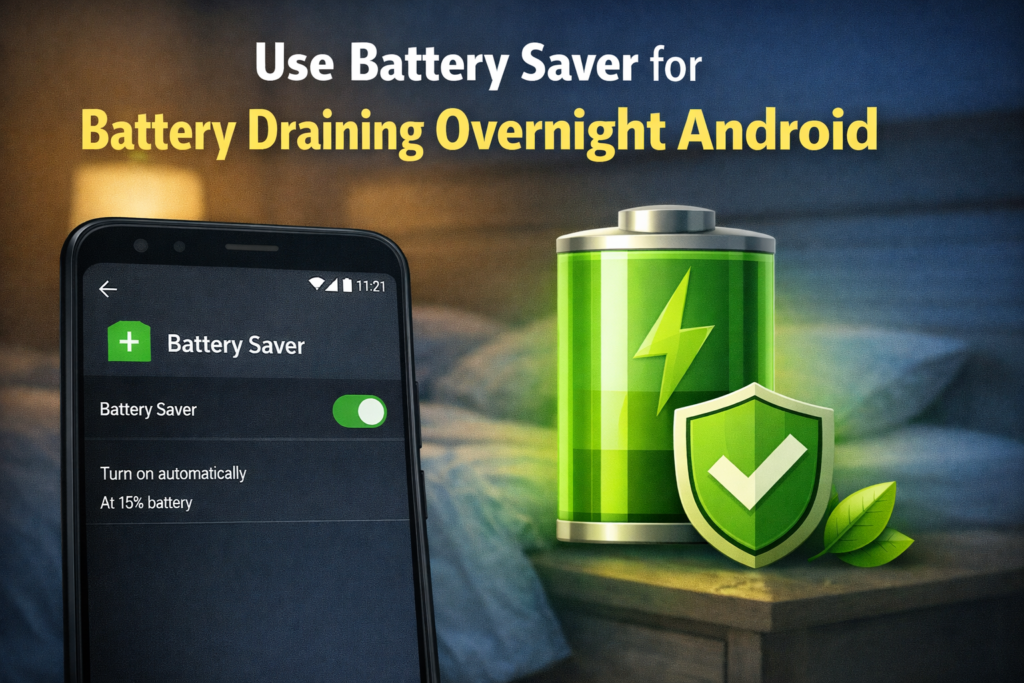
Furthermore, battery saver is very helpful. It limits background processes automatically.
Because of this, your phone reduces hidden activity.
👉 Tip:
Turn it on before sleeping daily.
Meanwhile, location services run continuously. Therefore, they consume battery even when idle.
As a result, your phone stops tracking activity.
Sometimes, poor signal causes heavy drain. In such cases, your phone keeps searching for a signal.
Because of this, your phone avoids unnecessary searching.
👉 Real test:
In weak signal areas, airplane mode reduced battery drain completely.
If your device heats while charging, it may also impact battery life. See this solution: Why Your Phone Overheats Only While Charging: 7 Proven Fixes.
Finally, software bugs can cause this issue. Therefore, updating your phone is important.
If the issue continues, factory reset is the last option.
👉 What worked:
After a system update, background drain stopped on Samsung device.
Therefore, focus on real fixes, not basic ones.
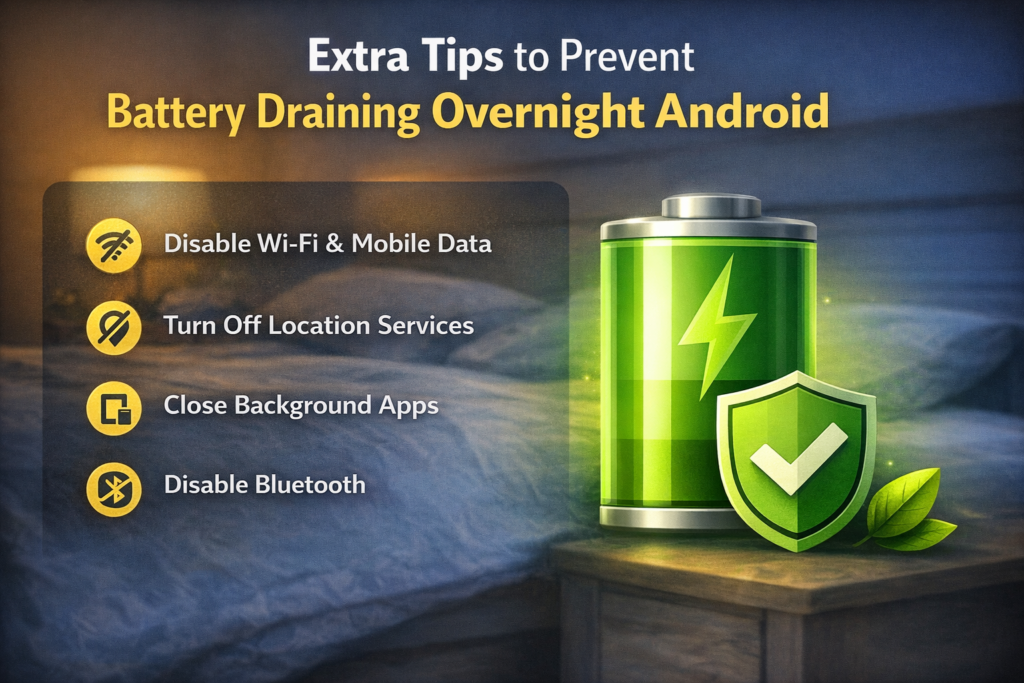
To avoid this issue in future:
In addition, check battery usage weekly.
In conclusion, the battery draining overnight android issue is very common. However, it is easy to fix once you find the cause.
Therefore, start by checking battery usage. Then, apply fixes step by step. As a result, your battery will remain stable overnight.
System performance issues can slow your device and affect battery. Check this fix: Mouse Keeps Freezing? Fix This Annoying Lag Now.
Because apps, sync, and system processes run in the background.
Restrict apps, disable sync, and use battery saver.
A small drop (2–5%) is normal. However, heavy drain is not.


2 thoughts on “Why Your Phone Battery Drains Overnight: 7 Proven Fixes””