 11
11
If your android storage won’t free up, even after deleting files, you are not alone. In many cases, users notice that their phone still shows full storage despite clearing photos, videos, and apps. Therefore, this issue can be frustrating, especially when your device slows down or stops installing new apps.
However, the good news is that this problem is usually caused by hidden data, cache files, or system glitches. In other words, your storage is not truly full — it’s just not updating correctly. So, in this guide, you will learn exactly why this happens and how to fix it using simple, proven steps.
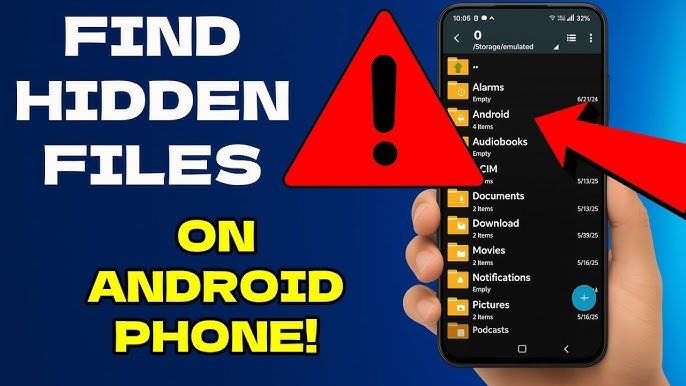
Fix Hidden Files Not Showing on Android (Quick Guide)First of all, it is important to understand why your android storage won’t free up. Although you delete files, your device may still keep unnecessary data in the background.
For instance, cached files, temporary data, and trash folders often store deleted content. As a result, your available storage does not increase immediately. Moreover, system bugs can also prevent proper storage updates.
Therefore, identifying the exact cause will help you fix the issue faster and more effectively.
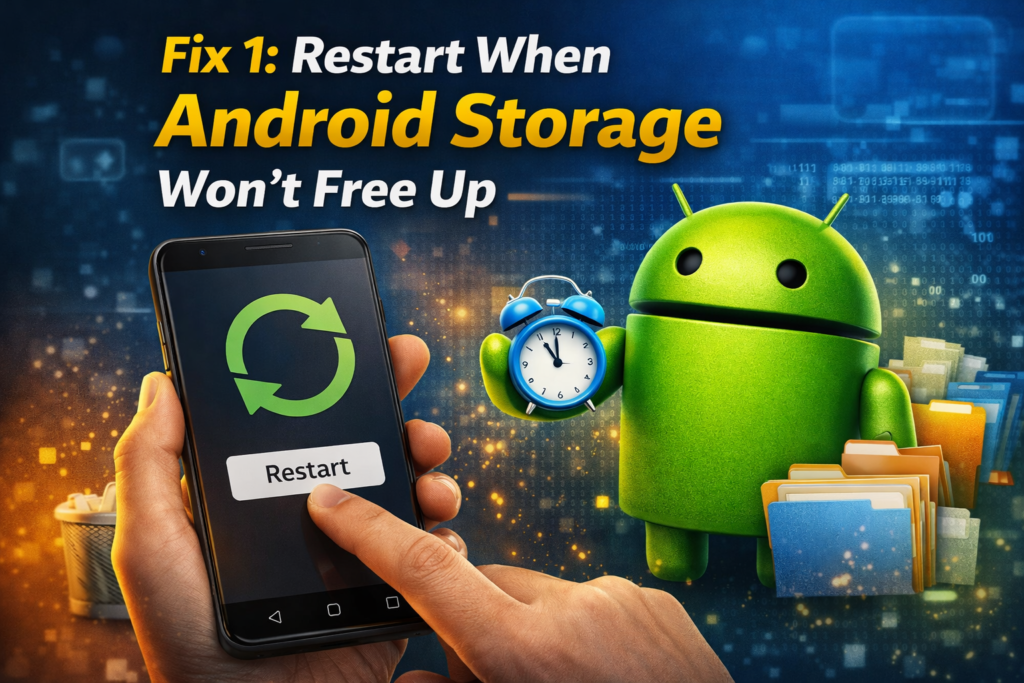
To begin with, restarting your phone can solve temporary glitches. In many situations, your device simply needs a refresh to update storage correctly.
After that, check your storage again. In many cases, this simple step resolves the android storage won’t free up issue instantly.
Next, clearing cache is one of the most effective solutions. Although cache helps apps load faster, it can also consume a large amount of storage over time.
If your phone still shows full storage, check this guide: Phone Storage Full But No Files Showing.In addition, you should repeat this process for multiple apps. Consequently, your android storage won’t free up problem can be reduced significantly.
Moreover, many users forget to empty the trash folder. Even though files appear deleted, they are often stored for several days.
Then, delete everything permanently. As a result, your android storage won’t free up issue may disappear immediately.
In addition, hidden files can silently take up space. Therefore, you need to locate and remove them manually.
As a result, you will free up storage that was previously invisible. This step is essential when android storage won’t free up after deleting files.
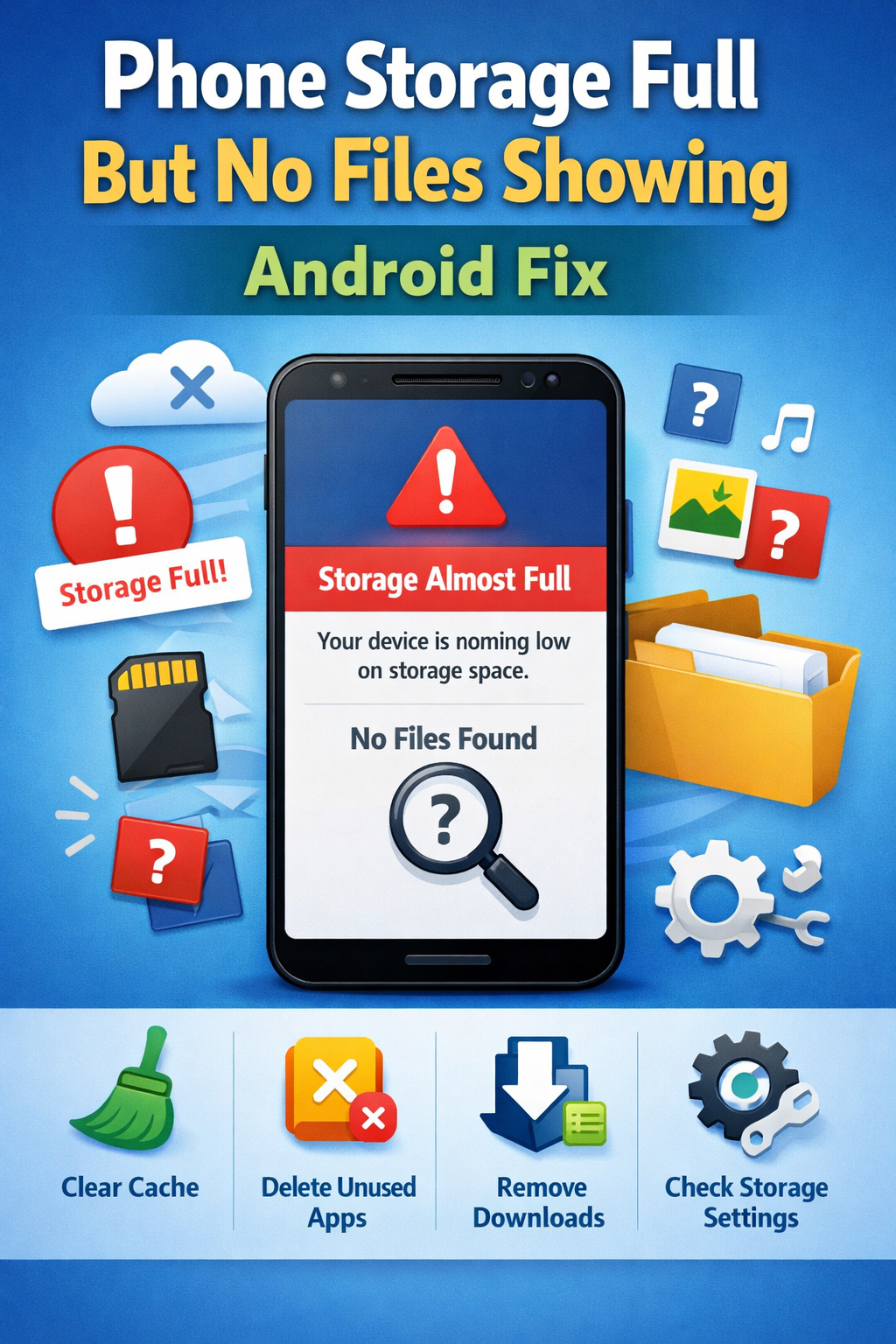
Phone Storage Full But No Files Showing? Fix Now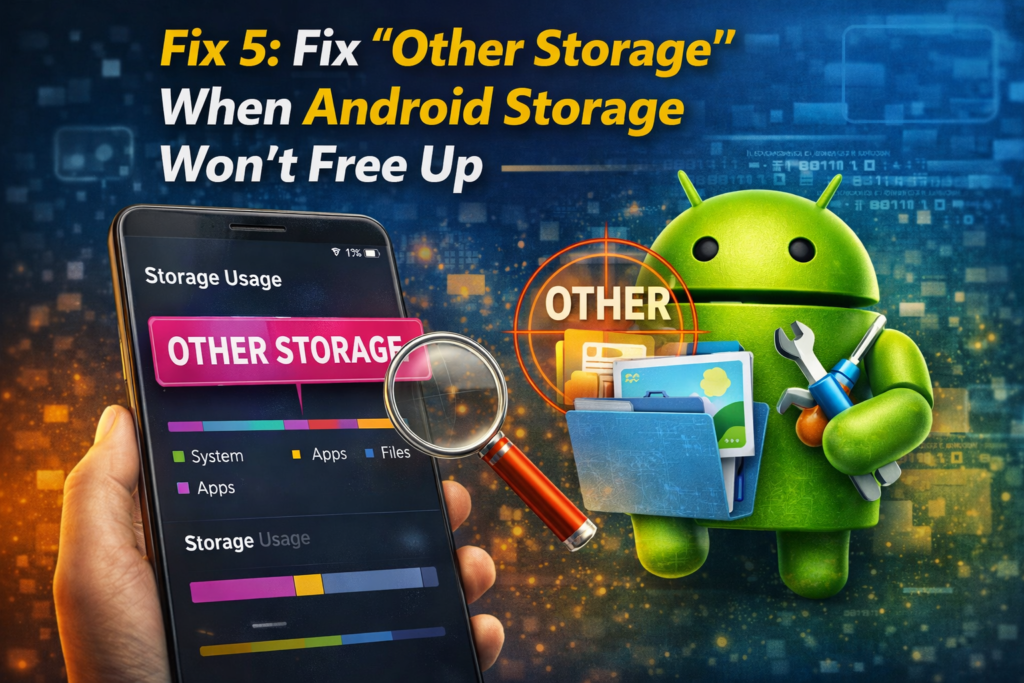
Furthermore, “Other Storage” can grow unexpectedly. It includes app data, system files, and temporary content.
Therefore, managing this section helps solve the android storage won’t free up problem effectively.
Sometimes, apps leave behind residual files. Even after clearing cache, these files can still take up space.
Afterward, check your storage again. In many cases, this completely fixes the android storage won’t free up issue.
Finally, if none of the above methods work, your device may have a deeper issue. Therefore, resetting certain settings can help.
However, make sure to back up your data first. Once completed, your android storage won’t free up issue should be fully resolved.
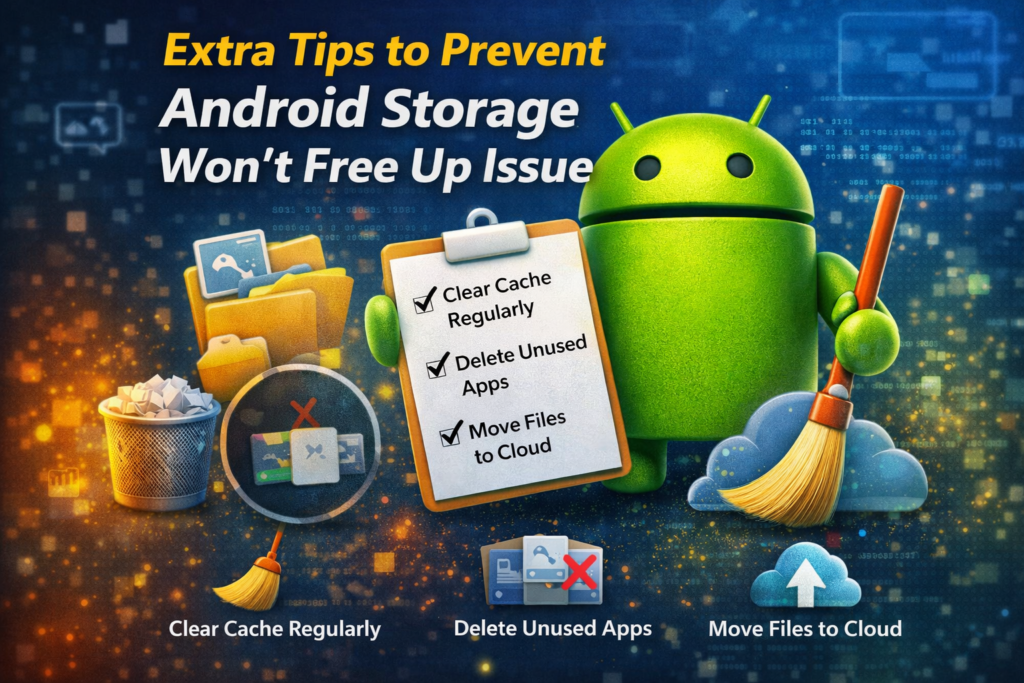
To avoid this issue in the future, follow these useful tips:
In addition, maintaining your storage regularly ensures smooth performance and prevents similar issues.
Bluetooth No Sound on Windows? 7 Easy FixesIn conclusion, if your android storage won’t free up, the issue is usually caused by hidden data, cache, or system glitches. However, by following the steps above, you can fix the problem quickly and efficiently.
Start with simple methods like restarting and clearing cache. Then, move to advanced solutions if needed. Ultimately, these fixes will help you free up space and improve your device’s performance.
Because files may still exist in cache, trash, or hidden storage.
Restart your phone, clear cache, remove hidden files, and empty trash folders.
Not always. However, it is helpful if all other fixes fail.
Mouse Keeps Freezing? Fix This Annoying Lag Now