 11
11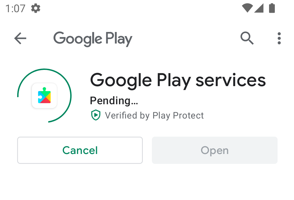
If your apps are stuck on Play Store pending on Android, the issue can be frustrating. You tap install, but the app never starts downloading. Instead, it stays on “Pending” for several minutes. However, this is one of the most common Play Store issues, and in most cases, it can be fixed quickly.
I faced this exact problem recently while installing a new app on my Android phone. At first, I thought my Wi-Fi was slow. However, after waiting, the download still did not move. Then I tested a few settings, cleared the cache, and cancelled background updates. As a result, the app started downloading instantly.
In this guide, I’ll show you the exact steps that worked for me and explain why Play Store pending on Android happens in the first place.
Before trying the fixes, it helps to know why this happens.
Usually, the issue appears because:
For example, I once noticed that 6 apps were updating automatically in the background. Meanwhile, the app I wanted stayed pending. After stopping the background queue, the issue disappeared immediately.
Therefore, checking the download queue should always be your first step.
This is the most effective fix.
When multiple apps are downloading, Play Store often keeps new apps in the queue. As a result, the install button shows only “Pending.”
After I did this, my app started within seconds.
Moreover, this method works especially well if auto-updates are enabled.
Sometimes the internet connection looks fine but still blocks Play Store requests.
For instance, I was on Wi-Fi with full signal bars. However, the pending issue continued. Then I switched to mobile data, and the app downloaded immediately.
So try this:
Additionally, avoid public Wi-Fi because some networks block Play Store traffic.
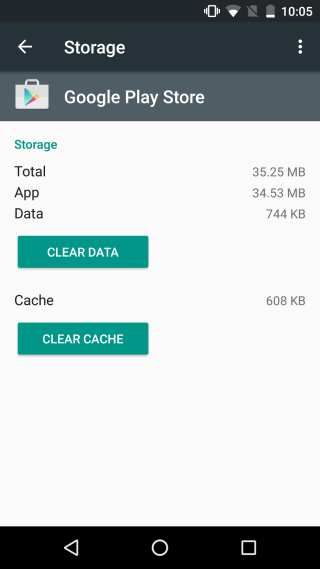
A damaged cache often causes Play Store queue issues.
In my case, restarting alone did not work. However, clearing the Play Store cache fixed the issue instantly.
As a result, Play Store refreshes the pending queue.
Furthermore, this also fixes random Play Store crashes.
Low storage can silently stop downloads.
I tested this on another Android phone with only 500MB free space. The app remained pending no matter what I tried. After deleting videos and clearing WhatsApp media, downloads started working again.
Therefore, always keep at least 2–3GB free storage.
You can:
In addition, storage cleanup also improves phone speed.
Restarting sounds simple, but it often works.
At first, I skipped this step because it seemed too basic. However, after trying cache cleanup and network switching, I restarted the phone. Surprisingly, the pending issue was gone.
This happens because restart:
As a result, downloads resume normally.
Sometimes the issue is deeper than Play Store itself.
Google Play Services controls authentication, sync, and app downloads. Therefore, if its cache is corrupted, apps may remain pending.
After doing this, the Play Store queue usually refreshes.
Meanwhile, this can also fix update errors.
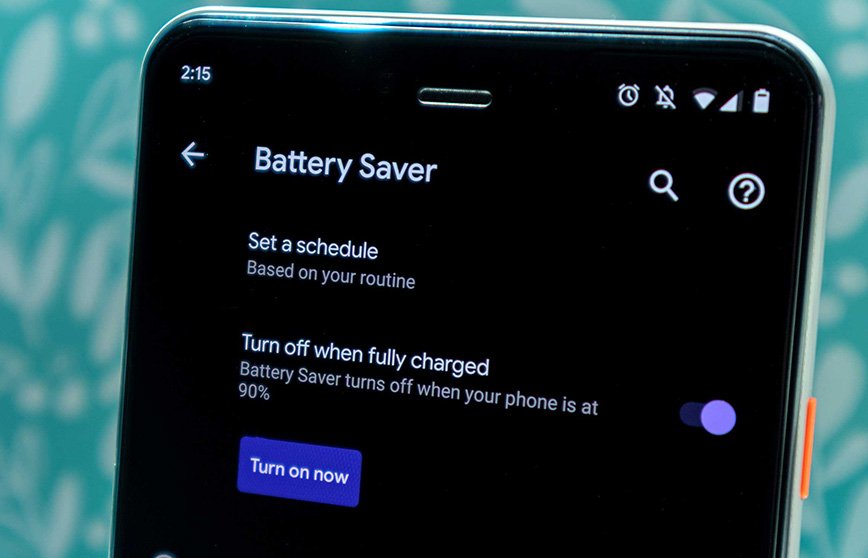
Battery Saver may block background downloads.
For example, one of my phones had extreme battery optimization enabled. Because of this, Play Store could not start downloads in the background.
As a result, downloads start faster.
You can also check:
These issues are often connected to storage and background app problems.
I first tried waiting, but nothing changed. Then I stopped auto-updates, cleared Play Store cache, and switched from Wi-Fi to mobile data. Immediately after that, the app started downloading.
So based on my experience, queue cleanup + cache clear is the fastest working combination.
Seeing Play Store pending on Android can be annoying. However, the problem is usually caused by simple issues like queued updates, low storage, or network glitches.
By following the steps above, you can solve it in minutes. Moreover, keeping enough free storage and clearing cache regularly helps prevent the issue from coming back.
Usually because other apps are updating, storage is low, or cache is corrupted.
Yes, unstable Wi-Fi can delay downloads.
No, clearing Play Store cache only removes temporary files.
Yes, low free space is one of the biggest reasons.
Stopping other downloads and clearing cache fixed it immediately.