 11
11
Internet working but google apps not working android fix is a common issue that many Android users face today. If your mobile data or WiFi is active but apps like Gmail, Google Play Store, Google Maps, or Chrome are not working, then you are not alone.
At first, this problem can feel confusing and frustrating. However, you may notice that apps like WhatsApp, YouTube, or Instagram are working perfectly fine. Therefore, many users assume their internet connection is the issue. In reality, the problem is usually related to internal Android settings and Google services.
Moreover, Google apps depend heavily on background services, sync settings, and permissions. Because of this, even a small issue can stop them from functioning properly. So, in this guide, you will learn simple, effective, and proven solutions to fix this issue step by step.
Before applying any fix, it is important to understand the cause. Although your internet is working, Google apps rely on Google Play Services and background sync. Therefore, if something goes wrong in these areas, apps may fail to connect.
For example, this issue may occur due to:
As a result, Google apps stop working even when the internet is active.
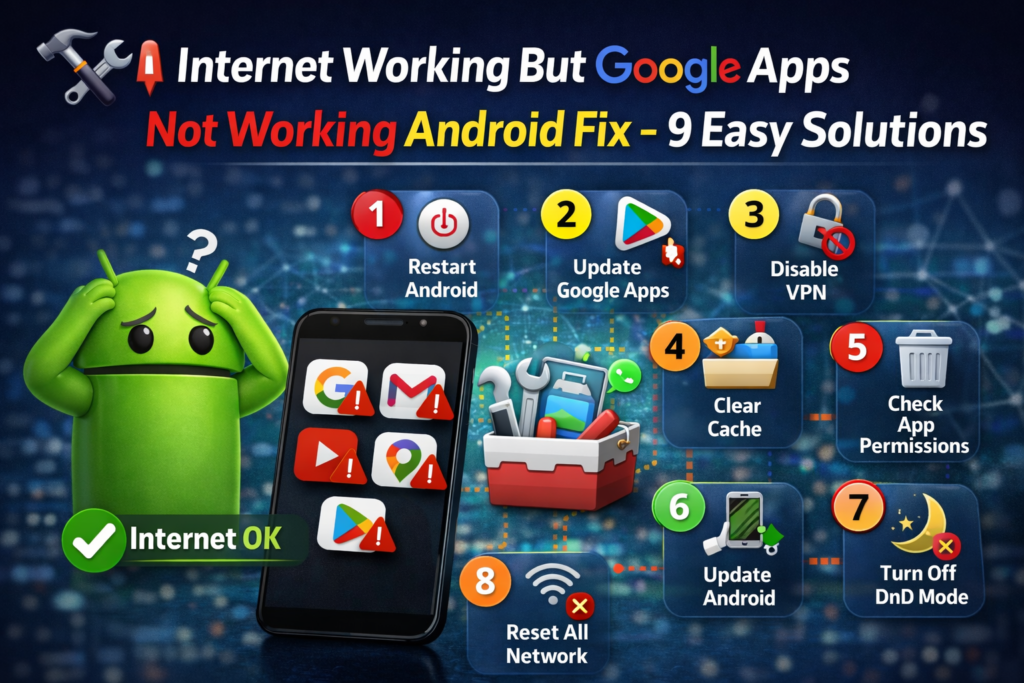
First, make sure your internet connection is stable. Even if it is connected, it may not be strong enough. Therefore, open a browser and try loading different websites.
If pages load slowly, then switch between WiFi and mobile data. In many cases, unstable internet affects Google services more than other apps.
Next, restart your device. Although this seems simple, it is very effective.
After restarting, system processes refresh. As a result, temporary bugs are cleared and apps may start working again.
Then, check background data settings. Google apps need background data to function properly.
👉 Steps:
Additionally, repeat this for Gmail and Play Store.
After that, clear cache. Over time, cache files can become corrupted. Therefore, apps may stop working.
👉 Steps:
This is one of the most effective fixes.
Also, check if sync is enabled. If sync is turned off, apps like Gmail will not update.
👉 Steps:
Another important step is checking your date and time settings. If they are incorrect, Google servers cannot sync properly.
👉 Steps:
Sometimes, VPN or DNS settings can block Google servers. Therefore, disable them temporarily.
After disabling, check if your apps are working.
In addition, outdated apps may cause issues. Therefore, always keep them updated.
👉 Update:
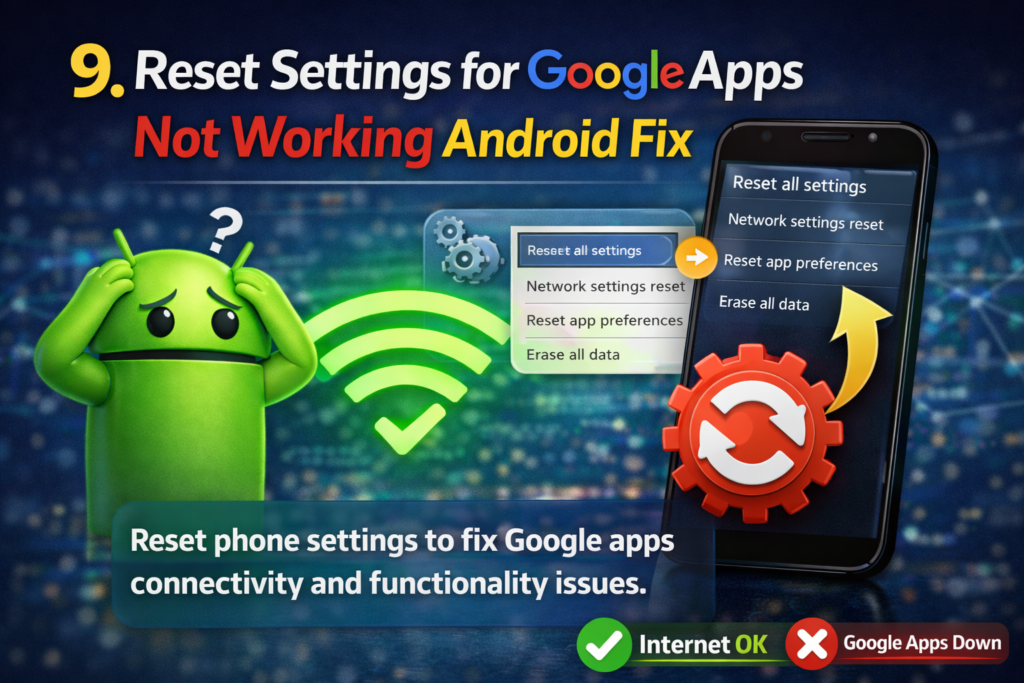
Finally, if nothing works, reset app preferences. Although this is an advanced step, it is safe.
👉 Steps:
This helps fix hidden issues.
I personally faced this issue where my internet was working perfectly, but Google apps were not opening. At first, I thought it was a network issue. However, other apps were working fine.
Then, I tried multiple fixes one by one. Initially, restarting did not help. After that, I checked background data and sync settings. Finally, I cleared the cache of Google Play Services.
As a result, everything started working again instantly.
So, if you are searching for internet working but google apps not working android fix, focus on these key steps:
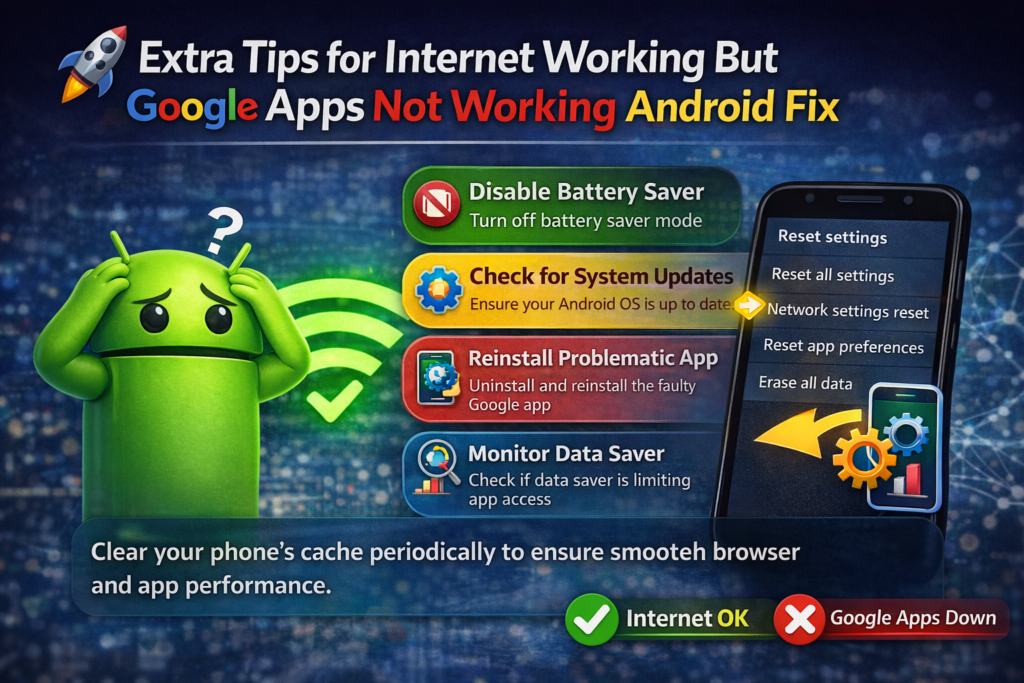
To prevent this issue in the future, follow these simple tips:
By following these tips, you can avoid most issues.
Because Google apps depend on Play Services and sync. Therefore, if these fail, apps stop working.
Yes, it is the main component behind all Google apps.
No, it only removes temporary files. Therefore, it is safe.
Because sync may be off or background data disabled.
No, use it only as a last option.
In conclusion, this complete internet working but google apps not working android fix guide helps you solve the issue quickly.
However, the most important steps are clearing cache, enabling sync, and checking background data. Therefore, always start with these solutions first.
Finally, by following these methods, you can fix the problem easily and restore your Google apps without any complicated process.