 11
11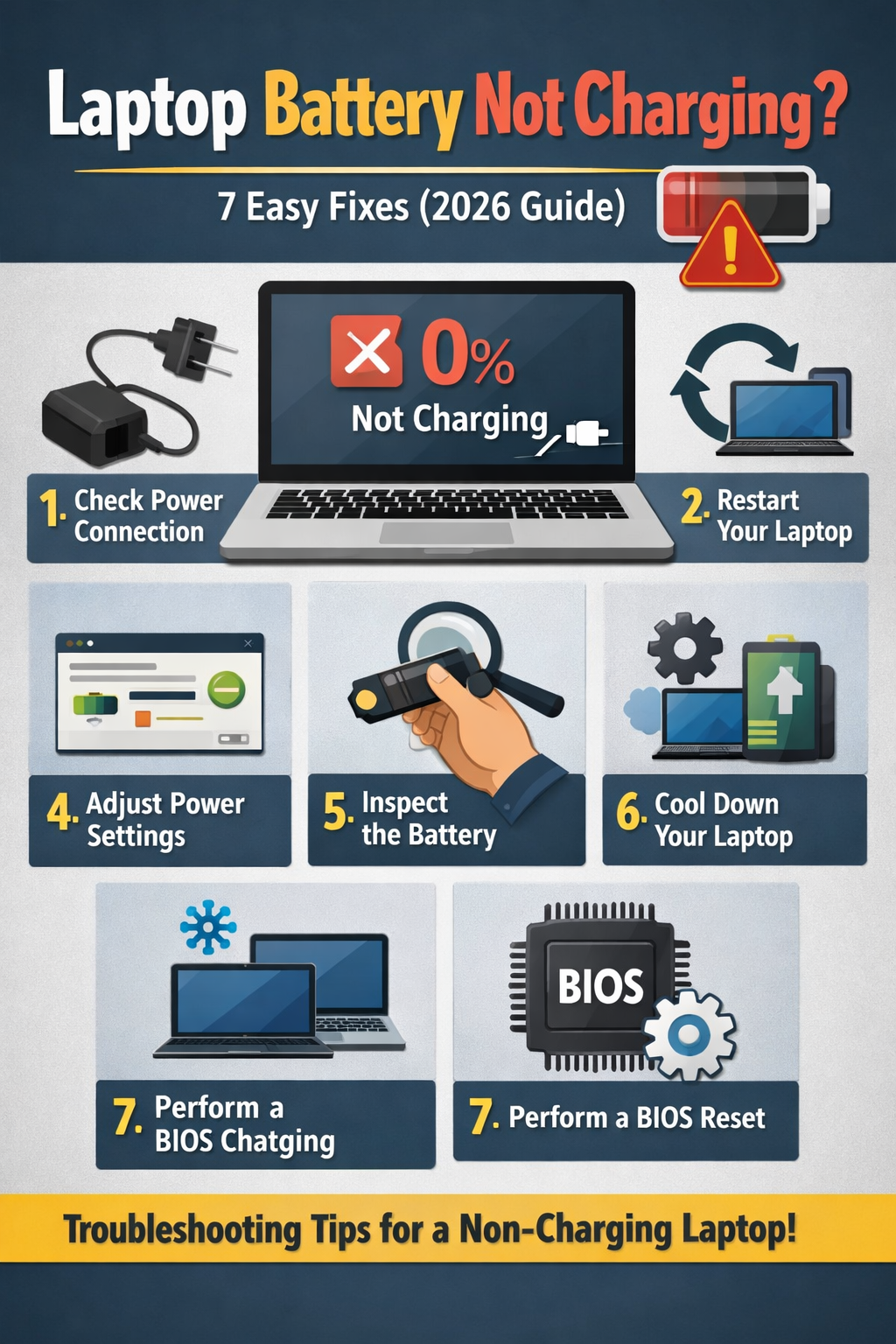
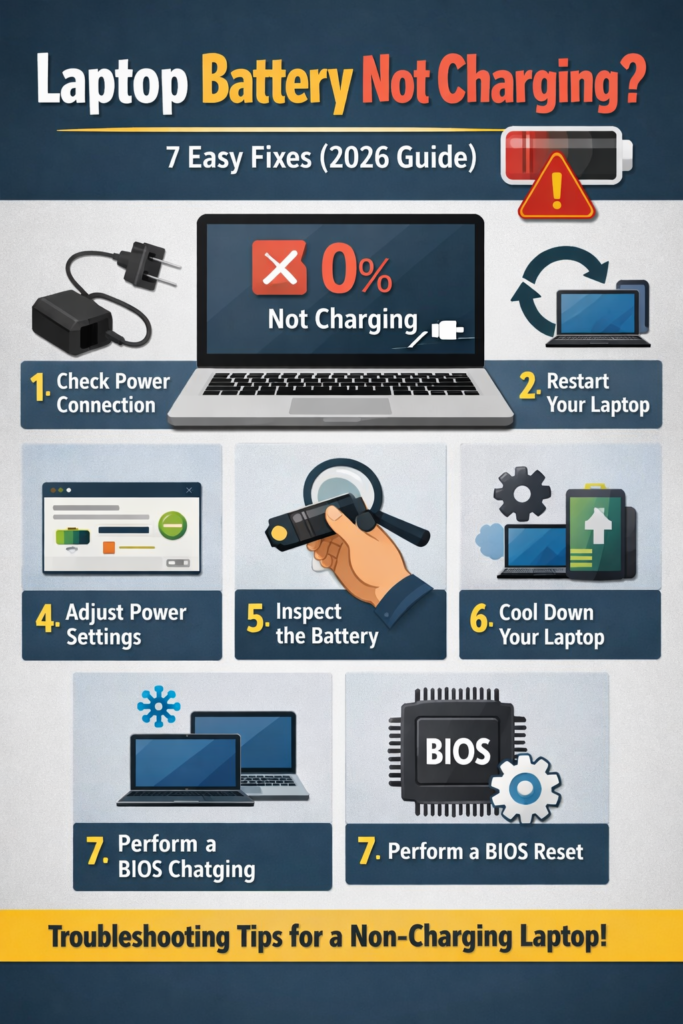
If your laptop battery is not charging and the percentage keeps dropping even when plugged in, you’re not alone. In fact, many users face issues like “plugged in, not charging” or the laptop not detecting the charger at all.
However, the good news is that in most cases, this problem is easy to fix without replacing your battery or laptop. Generally speaking, common causes include loose connections, incorrect settings, or outdated drivers. Therefore, identifying the root cause is important.
In this guide, you’ll learn simple and effective ways to fix your laptop battery not charging problem in 2026.
First of all, understanding the cause will help you fix the issue faster. In most cases, the reasons include:
To begin with, start with these basic checks — they solve most problems quickly.
First, make sure your charger is properly plugged into both the wall socket and your laptop. Also, avoid loose connections and inspect the cable carefully for damage. In addition, check both ends of the charger.
Next, plug another device into the same socket. If it doesn’t work, then the issue is likely with the outlet. Otherwise, move to the next step.
Additionally, most chargers have a small LED light:
So, this step helps you quickly identify the issue.
Then, follow these steps:
This way, you reset the battery system.
Moreover, dust or debris inside the charging port can block proper connection. Therefore, use compressed air or a soft tool to clean it. At the same time, avoid using metal objects.
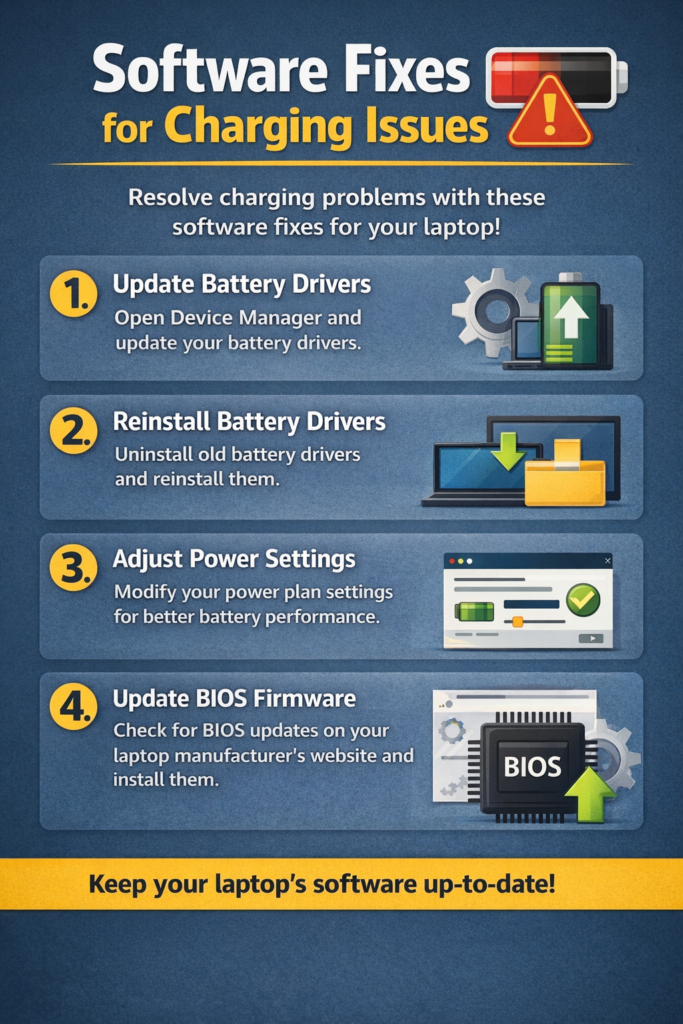
If the problem still continues, then it may be software-related. In that case, try these solutions.
Sometimes, a simple restart can fix temporary system glitches. So, restart your laptop and check again.
Next, follow these steps:
After that, restart your laptop. Then, Windows will automatically reinstall the drivers. As a result, charging issues may be fixed.
Meanwhile, you can use the built-in troubleshooter:
This will automatically detect and fix issues.
In addition, go to Control Panel → Power Options → Restore default settings.
Make sure no battery charging limits are enabled. Otherwise, charging may stop early.
Sometimes, laptops stop charging at 60–80% to protect battery life.
So, check your laptop’s battery software and disable this option if needed. As a result, full charging will resume.
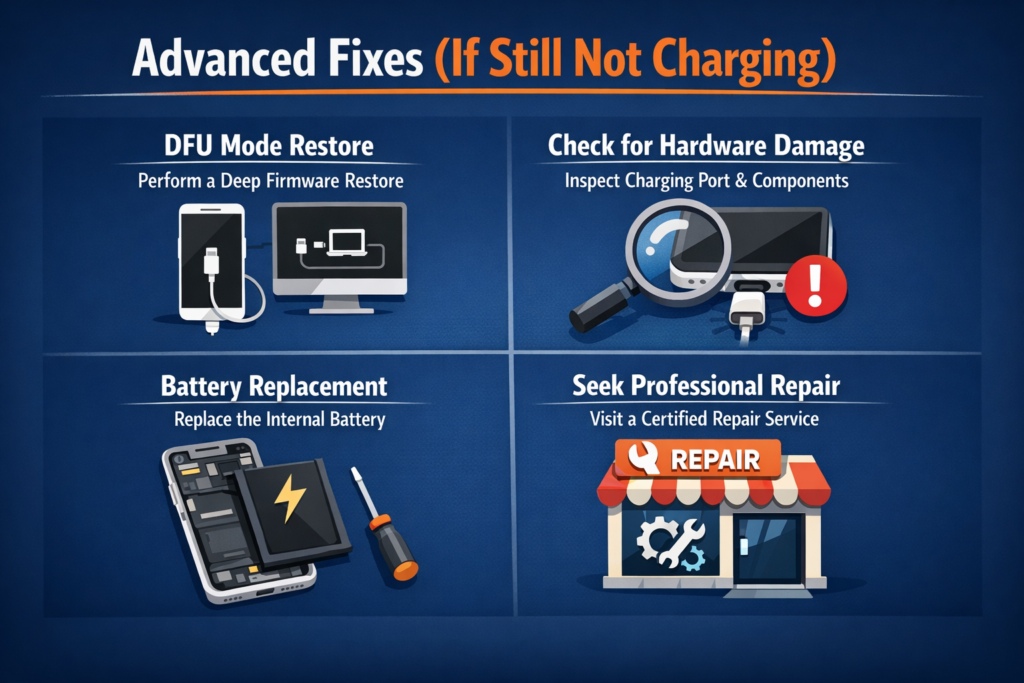
If none of the above works, then try these advanced fixes.
For example, if another charger works, your current charger is faulty. In that case, replace it.
Then, open Command Prompt (Admin) and type:
powercfg /batteryreport
After that, check the report for battery condition. If capacity is very low, then the battery needs replacement.
Also, if your laptop is too hot, it may stop charging. In that case, let it cool down. At the same time, ensure proper airflow.
Finally, if the port feels loose or damaged, it may require repair. Therefore, consider professional help.
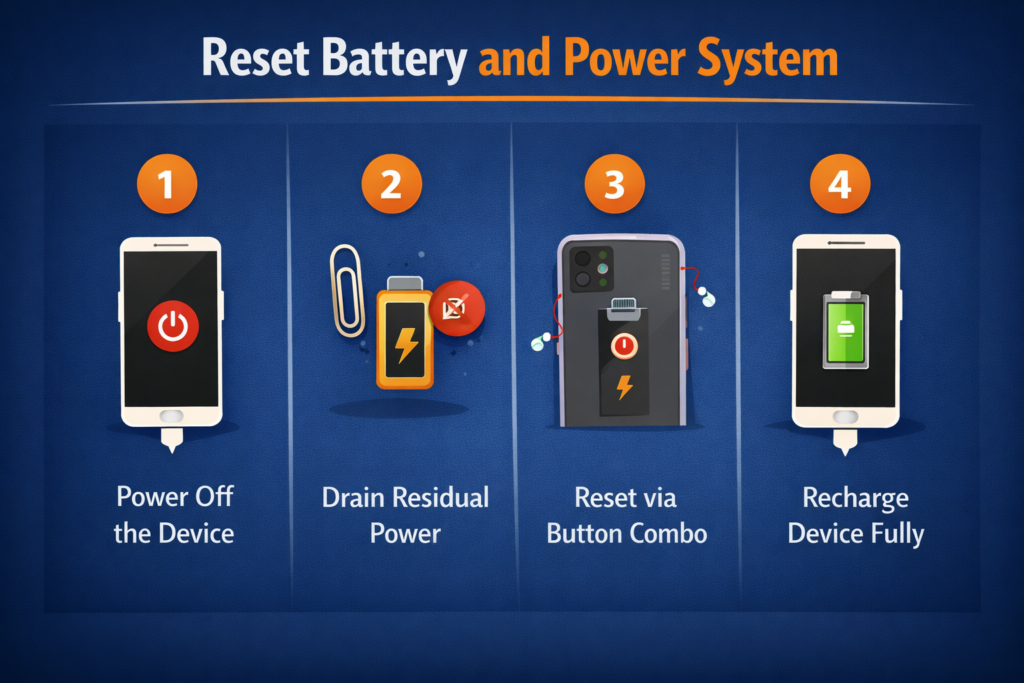
To reset the system, follow these steps:
This helps reset internal power settings.
Similarly, this resets your laptop’s power system. However, steps may vary by model.
If the issue still persists, then you should consult a technician if:
To avoid future issues, follow these tips:
In conclusion, a laptop battery not charging can be frustrating, but it’s usually easy to fix. First, start with simple checks. Then, move to software fixes. Finally, test hardware if needed.
Overall, in most cases, you can solve the issue without spending money on repairs or replacements.
🔥 FINAL RESULT on repairs or replacements.