
Popular Posts

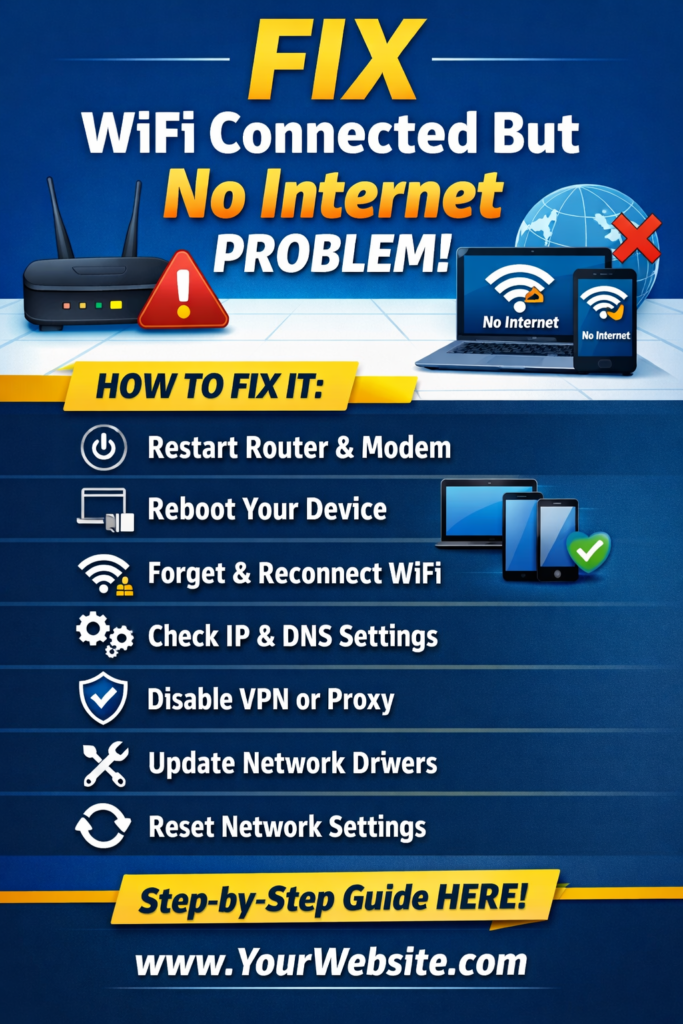
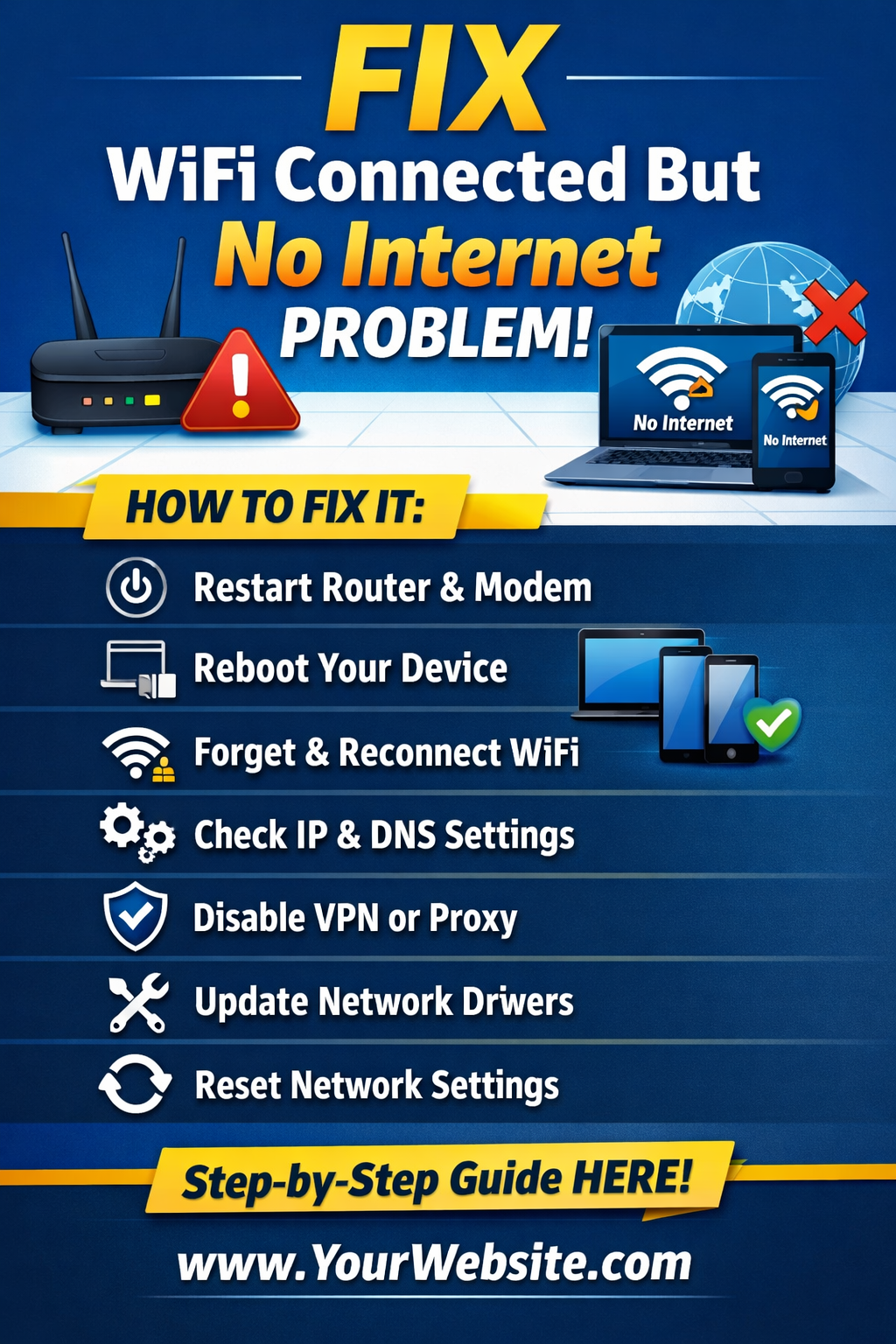
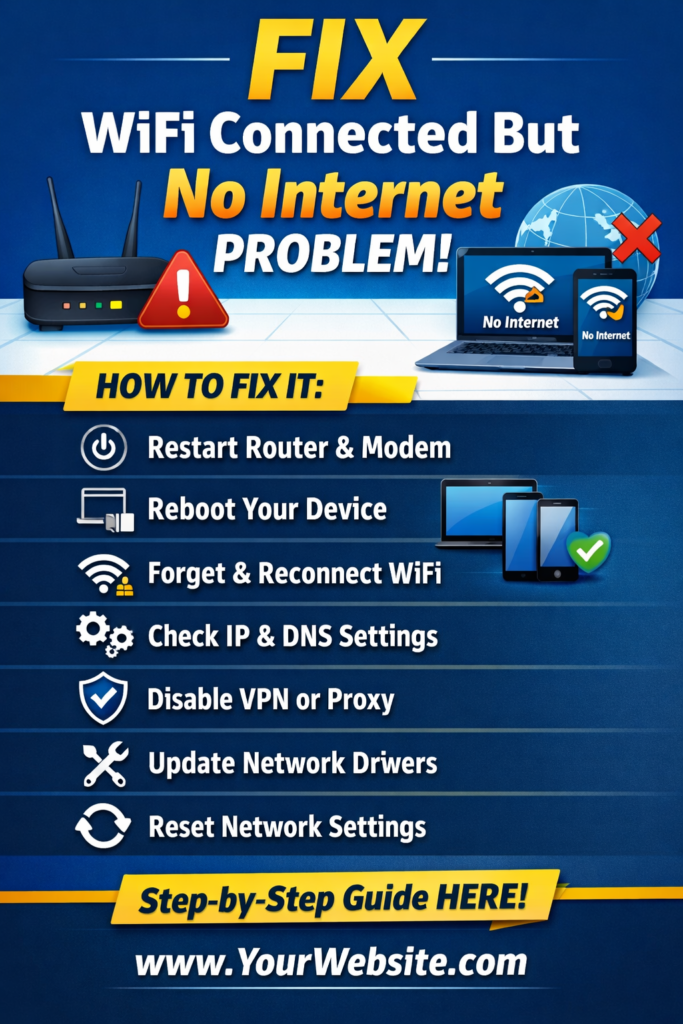
Fix WiFi Connected but No Internet Problem

Fix WiFi Connected but No Internet Problem

Few things are more frustrating than seeing a strong Wi-Fi signal but still having no internet access.

Your device shows “connected,” yet websites won’t load and apps stop working. Fortunately, you’re not alone. This issue affects laptops, smartphones, tablets, and smart TVs alike.

The good news is that most of the time, you can resolve this problem yourself without calling tech support. In this guide, we’ll cover 11 effective steps to fix “WiFi connected but no internet” in 2026.


What Does “WiFi Connected But No Internet” Mean?

Essentially, your device is connected to the router, but the router itself has lost its internet connection. Think of it like a phone call: you can talk to your friend (the router), but your friend cannot reach anyone else (the internet).

This problem can occur due to:

  • Temporary router issues
  • Incorrect IP or DNS settings
  • ISP outages
  • Device-specific errors

Understanding the cause will help you fix the issue faster.
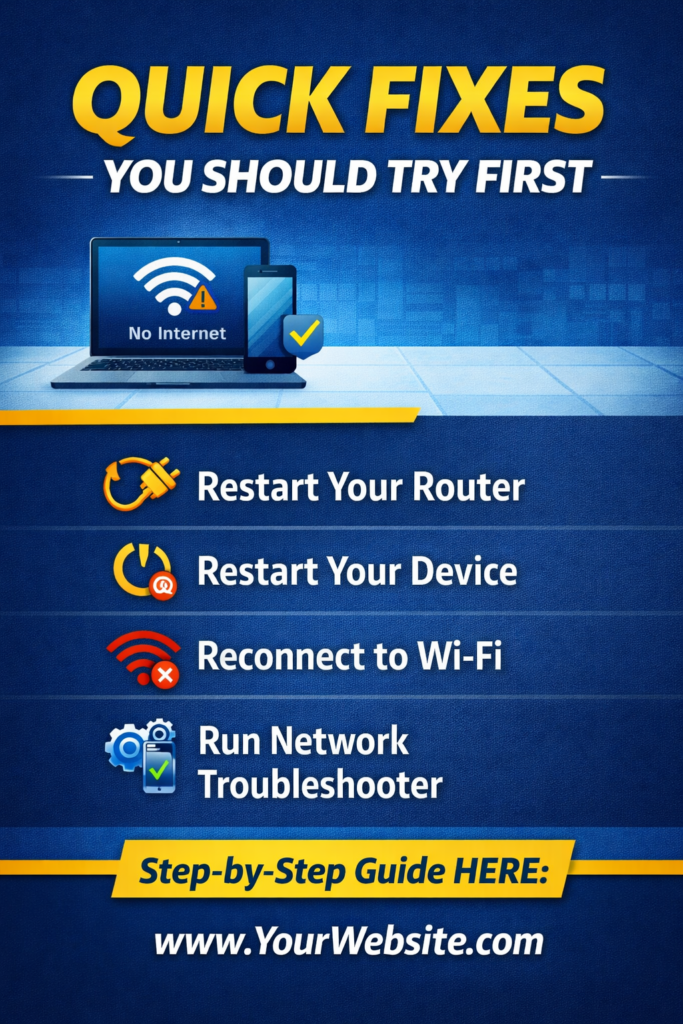

Quick Fixes You Should Try First

newtechnology1.com

1. Restart Your Router and Modem

To begin, restart your network devices.

  • Unplug your modem and router.
  • Wait 30 seconds.
  • Plug in the modem first, followed by the router.
  • Finally, restart your device and check the connection.

Restarting can often clear temporary glitches and restore connectivity.


2. Forget and Reconnect to WiFi

Sometimes, saved settings may be outdated or corrupted.

  • Go to WiFi settings.
  • Select your network and choose “Forget.”
  • Reconnect using your password.

This forces your device to establish a fresh connection, often solving the issue.


3. Run the Built-in Network Troubleshooter

Most devices include automated troubleshooting tools.

  • Windows: Settings → System → Troubleshoot → Internet Connections → Run
  • Mac: System Preferences → Network → Assist Me → Diagnostics

These tools can detect and fix common network issues automatically.
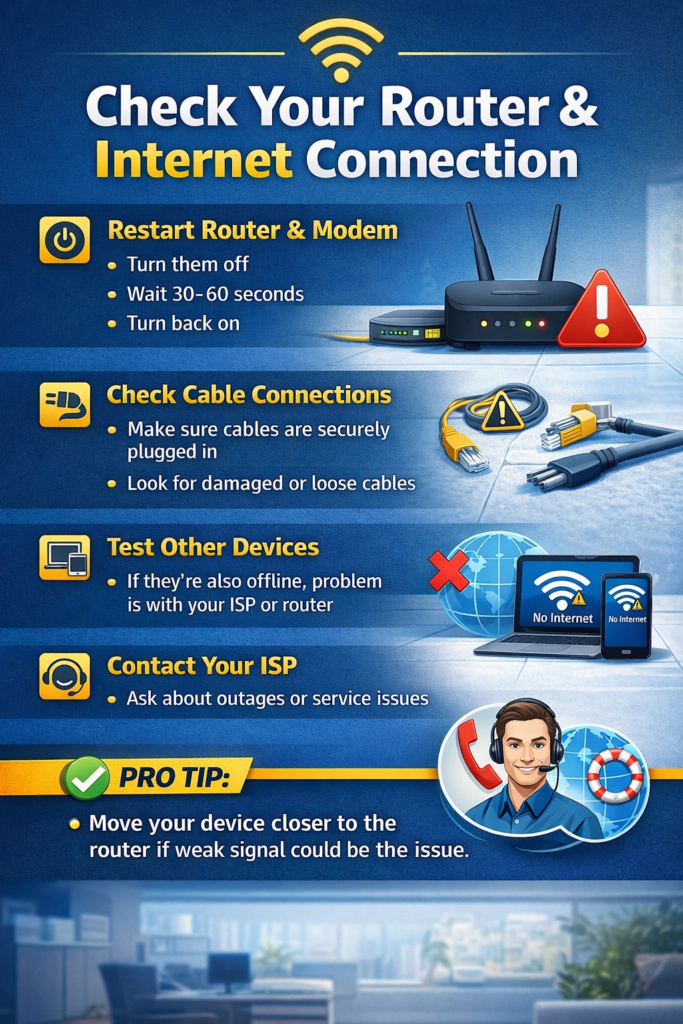

Check Your Router and Internet Connection

4. Inspect Router Lights and Cables

Router or modem hardware can be the culprit.

  • Green light → working normally
  • Red/orange light → potential issue
  • Ensure all cables are firmly connected

Loose cables often cause connectivity problems.


5. Check for ISP Outages

Sometimes, the problem lies outside your control.

  • Visit your ISP’s website or social media for outage notifications
  • Use tools like Downdetector to confirm

If there’s an outage, patience is required until service is restored.

Advanced Fixes (If Problem Persists)

Advanced Fixes (If Problem Persists)

6. Release and Renew IP Address

IP conflicts can block internet access.

  • Open Command Prompt (Admin)
  • Run: ipconfig /release
    ipconfig /renew
    ipconfig /flushdns
  • Check your connection afterward

7. Flush DNS Cache

Over time, DNS cache can become corrupted. Clearing it refreshes the connection:

  • Windows: ipconfig /flushdns
  • Mac: sudo dscacheutil -flushcache; sudo killall -HUP mDNSResponder

8. Change DNS Server

If your ISP’s DNS is slow or unreliable, switch to a faster public DNS:

  • Google: 8.8.8.8 / 8.8.4.4
  • Cloudflare: 1.1.1.1 / 1.0.0.1

This can improve browsing speed and reliability.


9. Reset Network Settings

When all else fails, reset your network to factory defaults.

  • Windows: Settings → Network & Internet → Advanced network settings → Network reset
  • Mac: Delete network config files or create a new network location
  • iOS/Android: Settings → Reset → Reset Network Settings

Note: You will need to reconnect to WiFi after resetting.


Device-Specific Issues

If only one device is affected:

  • Toggle Airplane mode on/off
  • Ensure WiFi adapter is enabled
  • Update network drivers
  • Verify device isn’t blocked by router

Software Interference

Apps or settings can block access:

10. Disable VPN or Proxy

  • Turn off VPN
  • Disable proxy settings
  • Test connection again

11. Temporarily Disable Firewall/Antivirus

Security software may interfere with network access.

  • Temporarily turn off your firewall/antivirus
  • Test internet connectivity
  • If it works, adjust settings to allow network access

Final Thoughts

The “WiFi connected but no internet” problem is frustrating but usually easy to fix. Start with basic solutions like restarting your router and reconnecting WiFi. Then, move to advanced steps such as resetting network settings or changing DNS servers.

Following these steps carefully helps you identify and resolve the issue quickly. If all else fails, your ISP may be the cause, and contacting support is the next step.

Leave a Reply

Your email address will not be published. Required fields are marked *