 11
11
If your Android copy paste not working, it can quickly become frustrating. For example, you may try copying text, but nothing happens. At the same time, the paste option may appear, yet no content is inserted. As a result, even simple tasks become difficult.
However, the good news is that this issue is usually temporary. In most cases, it happens due to small glitches or app-related problems. Therefore, you can fix it easily by following the right steps. In this guide, you will learn both the causes and the solutions in a clear and simple way.
hidden files not showing on Android fixFirst of all, understanding the cause is essential. Without knowing the reason, you may try random fixes that do not work.
Generally, this issue occurs due to:
For instance, even devices from Google and Samsung may face this issue after updates. Therefore, it is not limited to any specific brand or model.

To begin with, restarting your device is the simplest solution. Although it sounds basic, it often fixes the issue immediately.
When your phone runs continuously, minor glitches build up over time. As a result, features like copy and paste may stop working properly. In such cases, Android copy paste not working can be resolved quickly after a reboot.
Steps:
After that, test the feature again. In many cases, the issue is resolved at this stage.
Next, you should clear the clipboard. Over time, it stores multiple copied items. Consequently, it may stop functioning correctly, leading to Android copy paste not working problems.
Steps:
Additionally, if you use Gboard:
As a result, the clipboard refreshes and starts working again.
Meanwhile, your keyboard plays a major role in copy-paste functionality. If it has bugs, the feature may stop working, and Android copy paste not working may appear more frequently.
So, try the following:
For example, switching keyboards can quickly confirm whether the issue is keyboard-related.
phone storage full but no files showing AndroidIn addition, outdated software can create unexpected issues. That is why keeping your system updated is very important, especially when Android copy paste not working after an update.
Steps:
After updating, many system bugs are fixed automatically.
Sometimes, the issue appears only in specific apps. In that case, clearing cache is the best solution.
Apps store temporary data. However, when this data becomes corrupted, features like copy-paste may stop working, causing Android copy paste not working in those apps.
Steps:
Then reopen the app and test again.
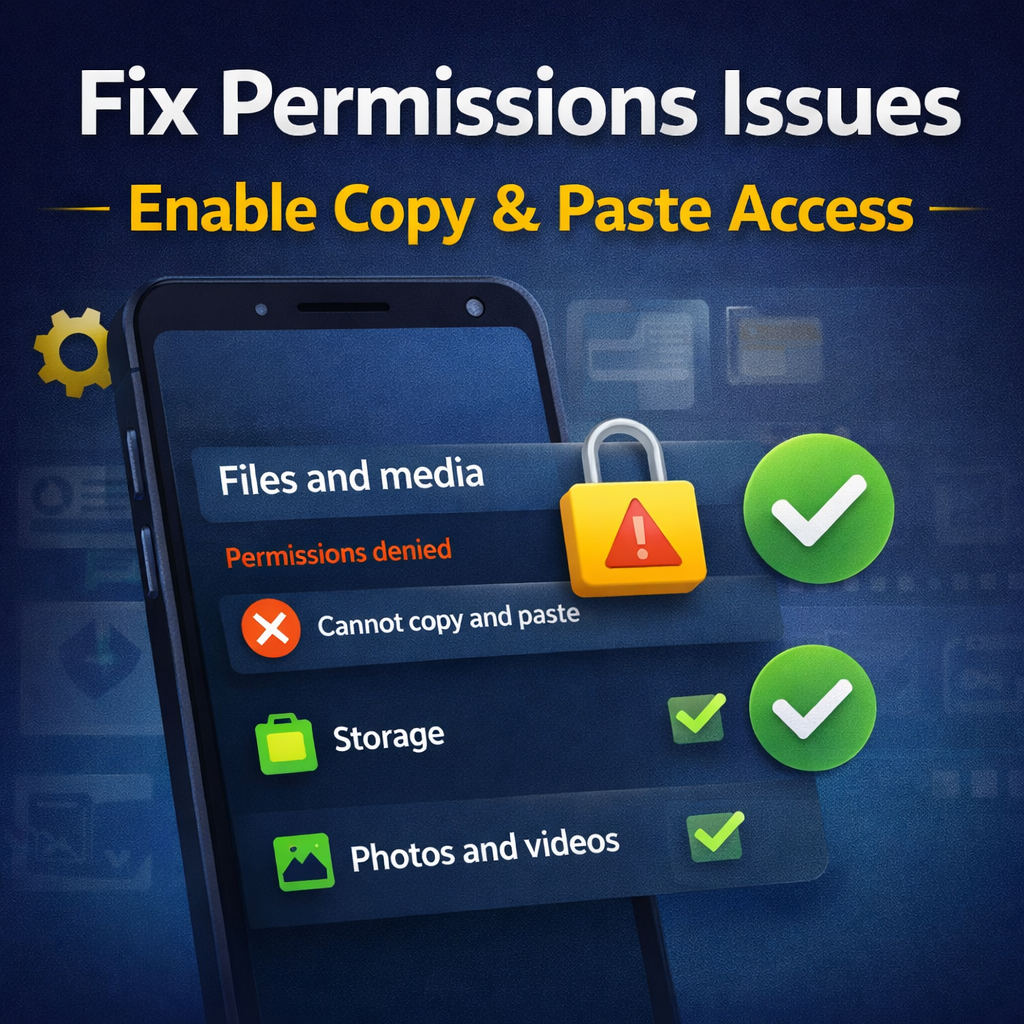
Another important factor is permissions. Some apps require access to certain features to function properly.
If permissions are disabled, problems may occur. As a result, Android copy paste not working may happen in specific apps.
Steps:
At times, apps freeze or behave unexpectedly. In such situations, refreshing them can help fix Android copy paste not working.
Steps:
Furthermore, some third-party apps interfere with system functions. For instance, clipboard managers or cleaner apps can create conflicts and lead to Android copy paste not working.
If the problem started after installing a new app, uninstall it. Then restart your device.
On newer Android versions, clipboard privacy settings may block access. Although these settings improve security, they can sometimes interfere with normal usage and cause Android copy paste not working.
Steps:
If the issue still continues, resetting app preferences can help. This restores default settings without deleting your personal data and can fix Android copy paste not working caused by hidden settings.
Steps:
Safe mode disables third-party apps. Therefore, it helps identify whether an external app is causing the issue.
If Android copy paste not working disappears, then a third-party app is responsible.
Finally, if nothing works, a factory reset is the last solution. Although it is a strong step, it completely refreshes your device and fixes Android copy paste not working permanently.
Important: Backup your data first.
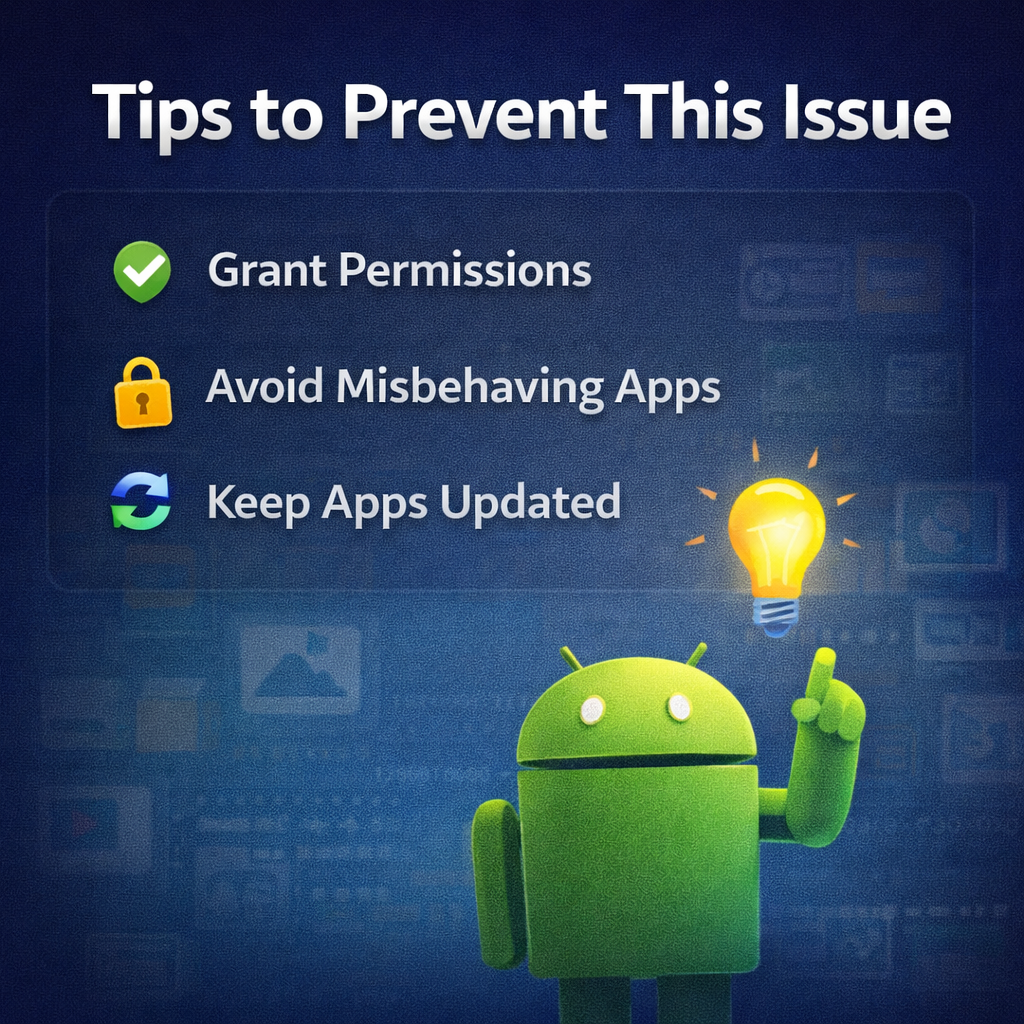
To avoid facing this problem again, follow these simple tips:
Why does copy paste stop working suddenly?
Usually, it happens due to system glitches or app conflicts.
Why does it fail in some apps only?
Because certain apps may have bugs or restrictions.
How can I fix it quickly?
Restart your phone and clear cache first.
In conclusion, Android copy paste not working is a common issue but easy to fix. In most cases, simple solutions like restarting or clearing cache solve the problem instantly. However, if the issue persists, advanced methods such as safe mode or reset can help.
apps or websites not working issue