 11
11
One reason why many laptops run slowly is that there is hardly any disk space left on the hard drive. Windows depend on a temporary file system to manage how Windows operates as well as update your computer and run applications.
If there isn’t enough disk space available to write these temporary files, it can cause other aspects of your computer (such as installing updates) to suffer and ultimately perform sluggishly.
You may receive messages stating that your computer has run out of disk space, or simply feel as though things are taking longer to accomplish than they should.
However, the good news is that cleaning up some of the unnecessary files will help restore the performance of your laptop, and you can accomplish this without spending a penny or having any technical background.
In this guide, I will provide you with several examples of the cleaning processes available to you to recover the space on your Windows laptop for 2026.
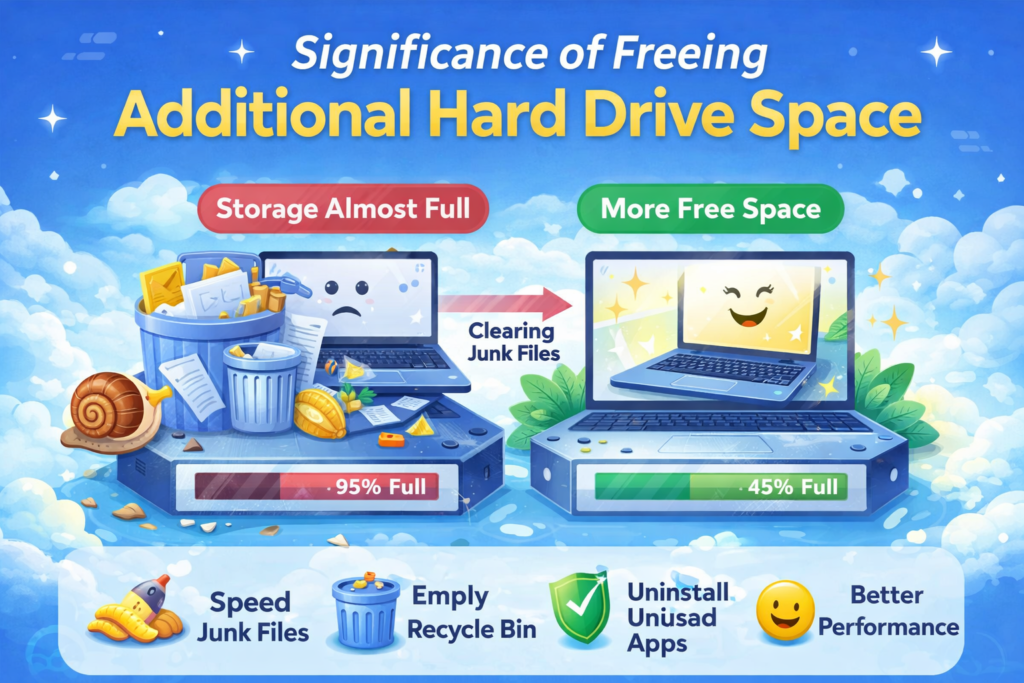
Having an understanding of how freeing up disk space can improve performance will motivate you to do it. When your hard drive has less than 80% of its total capacity available to store new or create temporary data files, Windows has a limited amount of physical disk space from which to create temporary files, hold virtual memory, and perform regular maintenance on your computer.
Solid-state drives (SSDs), which are increasingly being adopted by laptop manufacturers, experience reduced performance when they become full due to the amount of time it takes to manage their existing data prior to allowing creation of new data.
Laptops with SSDs typically need to have 80% of their total storage capacity available for creating temporary files, which will affect their overall performance.
In addition to performance issues, having little or no space left on your hard drive could also stop Windows’ updating process. In order for Windows to install updates onto your machine, it has to first have enough physical storage available to download the attached files as well as expand these files.
If there isn’t enough physical storage available on your hard drive, updates won’t install properly. Keeping your hard drive free of space by performing regular cleanup routines is not only a matter of performance; it is also a necessary part of keeping your laptop functional and safe.

Built-in tools come with Windows specifically for freeing up disk space. Before you move toward manual clean up, be sure to check out these features.
Storage Sense is a feature within Windows used for automatically cleaning up disk space on your system. It can remove temporary files, empty the recycle bin, and also delete old versions of Windows when enabled.
To turn on Storage Sense, press Windows key + I to open the settings screen. Choose System and then Storage. You’ll see a toggle where you can turn on Storage Sense.
Click on the Storage Sense link and you’ll see options for how frequently it runs, such as only when you’re low on disk space or once a week or once a month. Make sure you check to delete temporary files.
Disk Cleanup is a classic tool that is quite effective at freeing up space.
Windows has set aside locations to keep temporary files so you can manually delete temporary files for greater benefit. Press the Windows key plus R to bring up the Run dialog box and input %temp% before hitting the Enter key, which will bring you to the folder that contains temporary files. Select all files (Ctrl + A) and delete them (press the Delete key). Some files may be in use and cannot be deleted; you can safely skip those.
Over time, you accumulate software that you no longer need. Each program takes up space, and some may even run background processes that consume resources.
Be particularly mindful of applications you installed for a single purpose months or years ago, toolbars, or “cleaner” utilities that often do more harm than good.
The Downloads folder is a notorious gathering place for forgotten files. It’s common to download a file, use it once, and never think about it again, leaving it to occupy space indefinitely.
Sometimes, finding the exact files and folders consuming your space can be difficult. Dedicated disk space analyzer tools provide a visual map of your storage, making it easy to spot space hogs.
TreeSize Free gives you a visual overview of the size of folders by showing them as new columns within the Windows Explorer folders list.
This makes it easier for you to see how much space all of your folders are using on your disk drive, which helps you to find that space more easily on your disk drive.
WizTree is another excellent tool that is extremely fast. It scans your drive and presents a graphical “treemap” where each file is a colored block; larger files appear as larger blocks, making them instantly identifiable.
You should run these tools at least once a month to look for large files that may have accumulated on your computer over time.
Look for things like old virtual machine files, ISO images you may have forgotten about, or app caches that have become larger than expected.
The purpose of Hibernation is to preserve everything on your computer so that it can be powered off completely while still allowing you to continue just where you left off. When you enter hibernation, your computer saves everything related to your program working to the hard drive.
To store this for you, your computer also creates a large file called hiberfil.sys, which can be as large as several gigabytes. If you rarely use the hibernation feature, it makes sense to disable Hibernation and thus reclaim that space.
You can determine if hibernation is enabled by going to the Command Prompt (run as administrator) by searching for cmd in the Start menu and then right-clicking on it and selecting Run as Administrator.
Type powercfg /hibernate off into the Command Prompt and press the Enter key. This will disable the hibernation feature and will also delete the hiberfil.sys file from your hard drive.
If you would like to reactivate your hibernation in the future, you can do so by typing powercfg /hibernate on into the Command Prompt.
System Restore provides a way to maintain a backup of your computer system by taking an image of your hard disk before installing any major changing software.
The snapshots created by System Restore are stored on your computer and can take up a large amount of space. You can control the amount of space allocated to System Restore.
To do so, go to the Start Menu and in the search area, type Create a Restore Point. Click on the search result that appears.To configure your drive for a certain amount of space for the system restore function, select your drive (normally the C drive) and click on the Configure tab.
A slider will appear for you to limit how much space can be used for the system restore function (typically a good range is between 5 percent and 10 percent of the total drive space). Click on the Apply button and then OK to confirm your changes.
If you are not utilizing the system restore function you will want to completely turn this feature off, but if you are using system restore you will want to leave the space allocated as is.
When new updates to Windows is installed it leaves behind the old version of the updated files so that if the new versions create an issue you can roll back to the previous versions of the updated files.
Typically, the amount of space used to store the old updated files can be hundreds or even thousands of gigabytes in size, especially after a major update has been pushed out to users.
As mentioned earlier in this article, when you run Disk Cleanup you will see an option to clean up system files, which is what you want to select when removing old Windows Update files.
This can potentially create up to a couple of hundred gigabytes of available free space, especially just after a major Windows Update has been installed.
Windows contains a feature called Compact OS which compresses the system files on your computer, allowing you to make better use of the space on your hard drive or SSD. Compact OS works similarly to the way that Windows worked on smaller tablets and should allow you to reclaim several hundred gigabytes of available storage space.
You can confirm if Compact OS is currently enabled on your computer by opening an elevated command prompt and running the following command: Compact /CompactOS:Query.
If it is not already enabled you can enable it by running the command: Compact /CompactOS:Always.
Enabling Compact OS will take time to complete the compression of your system files, but you can continue to utilize your computer while Compact OS is completing compressing your system files.
Keep in mind that using Compact OS will have a small negative impact on the performance of your computer since the files need to be decompressed each time they are accessed after being compressed.
On most computers that are relatively modern, this will have a minimal amount of negative impact, but the reduction in the amount of storage can potentially be significant.
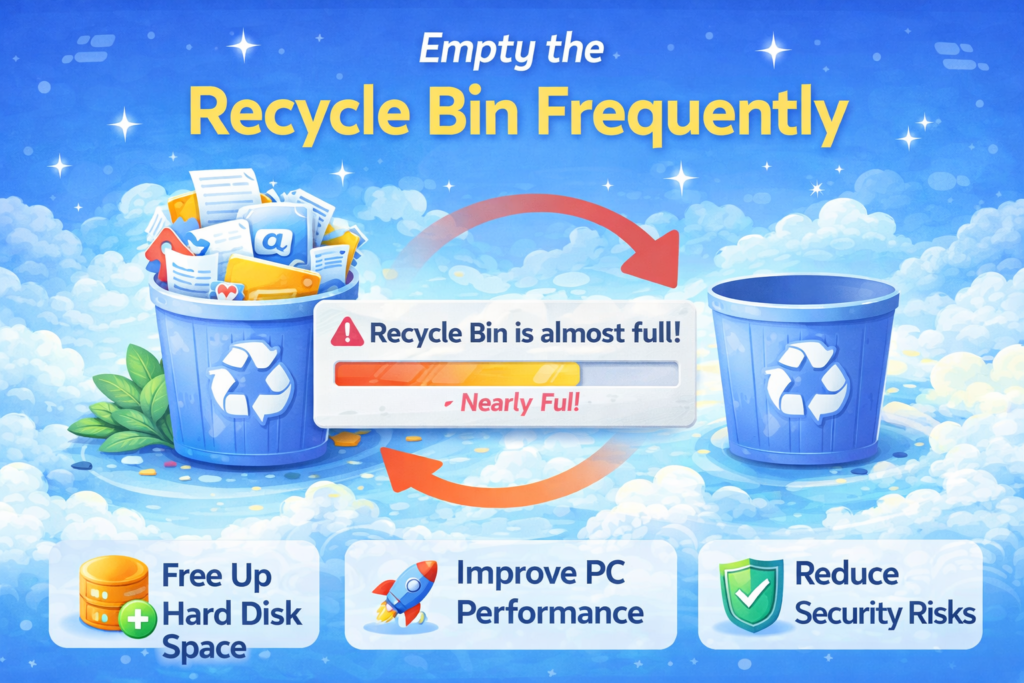
Once you delete a file it will stay in Windows Recycle Bin until you delete it from the Recycle bin; therefore, the files in the Recycle Bin are still taking up space on your hard drive.
Part of your regular PC maintenance should be to make sure that you are deleting any files from the Recycle Bin on a regular basis.
To delete everything from the Recycle Bin after you have deleted a file, simply right-click on the Recycle Bin icon and select the Empty Recycle Bin option on the pop-up menu that is displayed.
You can also configure Windows Storage Sense to automatically delete files from the Recycle Bin as well.
Cleaning up the hard drive of your laptop will be one of the best things that you can do to speed up both the performance and longevity of your laptop. You should use the built-in options for cleaning up your system by enabling Storage Sense for automatic clean-up procedures, as well as running the Windows Disk Cleanup utility to remove temporary files from your laptop.
Also, you should uninstall any programs that you have not used in the last 6 months, and delete all the files in your Downloads folder. Last, you should store all your personal files on a cloud server or external hard drive to create additional free space.
For a much deeper clean up of the hard drive/SSD, you could use a disk usage analyzer such as WizTree to identify files that are consuming excessive amounts of disk space.
You could also disable the hibernation function from your computer if you are not utilizing this feature, reduce the amount of space you are allocating for system restore, and cleanup any left over Windows Update files.
Additionally, you may also want to enable the Compact OS feature to compress as many of your files as possible if you are trying to maximize disk space.
If you make cleaning up your hard drive/SSD a normal part of your daily activities, you will be able to maintain the performance of your laptop, and avoid ever receiving low-disk space warnings.
With a little consistent effort, you will have plenty of memory to continue enjoying your computer.
Spending a small amount of time cleaning up your hard drive every month will greatly benefit you by providing you with improved performance and greater durability in the future.